Support Settings Guide
Updated 9 September 2026
Support Workflow Release · 9 September 2026: Simplified menus and tenant-wide AI are deployed. Screenshots use fictional local data.
99 Venture administrators open Administration → Support Settings. Tenant staff use the Teams Inbox; these controls are not tenant-side configuration.
Use the shared left navigation to return to Workspaces or open AI Studio. The top-right Appearance control uses the same light, dark and high-contrast settings as the rest of OCDIT.
Save Safely
- Select the relevant tab and edit its fields.
- Enter Change Reason → select that tab's Save button.
- Check the saved result. Other tabs' unsaved settings remain in the current page.
Check Last Action confirms the same request after a missing response. For a version conflict, preserve your changes and Reload Settings to review the latest configuration. Reloading deliberately discards unsaved settings after confirmation. Page drafts are not permanent storage.
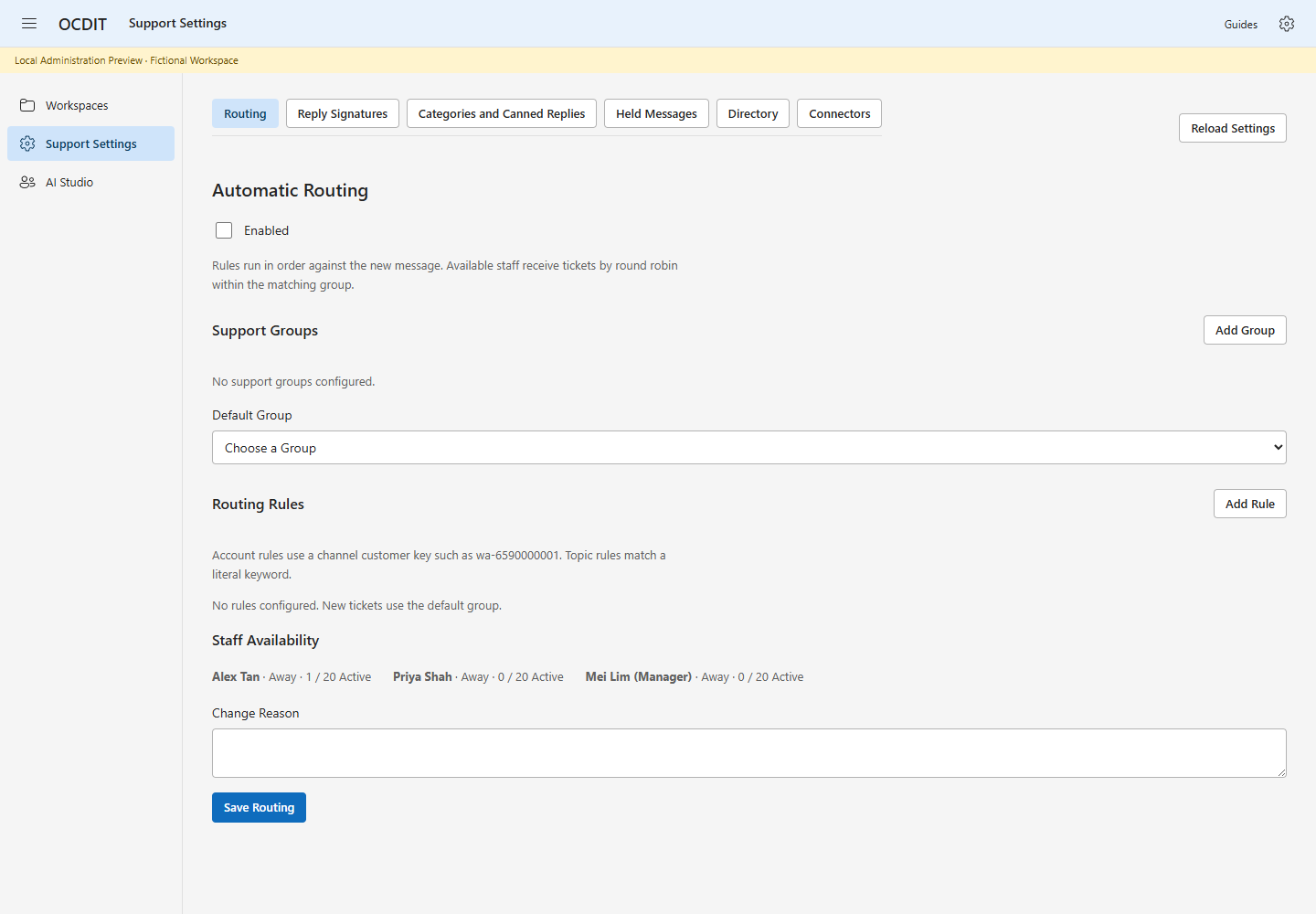
Routing
- Add support groups and select enabled members.
- Choose the default group.
- Add account-key or literal topic-keyword rules. Use Move Up and Move Down to set priority.
- Enable routing and save with a reason.
Rules are checked in their configured order for the first message of new work. Account rules match the exact channel customer key. Topic rules use a case-insensitive, Unicode-normalized literal substring in the new message, not historical text or model inference. If no rule matches, the default group is selected. Within that group, enabled and available staff below capacity receive work by round robin. If the selected group has no eligible staff, the ticket stays Unassigned; it does not silently fall through to another group. Staff open their name menu → Set Availability to set availability and capacity in Teams. Available status expires eight hours after it is saved; expired or legacy undated availability is treated as Away until renewed. Capacity is 1–200 active assigned tickets. The group list is configured here; it is not imported from Microsoft groups or presence. Do not delete a group while rules or the default still reference it.
Reply Signatures
- Choose Off, Optional or Required and the position.
- Set the company name and template. Token buttons insert Company Name, Agent Name or Role.
- Review the preview for the selected staff member and channel.
- Save the change reason.
The Role token uses the saved configured directory. An unsaved Directory edit does not change the signature preview. Missing roles stay blank. WhatsApp formatting differs from LINE and WeChat, and final channel limits still apply at send time.
Categories and Canned Replies
- Add Category and enter its name.
- Add Reply, enter its title and message, choose a category and enabled channels.
- Use Find a Reply to locate existing wording. Search does not discard other edits.
- Save with a reason.
Remove a category from its replies before deleting it. Turning off Enable Canned Replies hides reusable replies from staff; it does not erase configured categories. Canned text is inserted into a human reply draft, not automatically sent.
Directory
- Open Directory → Configured Organization Directory.
- Enter the role for each applicable enabled staff member.
- Optionally choose a manager. Self-management and cycles are invalid.
- Save with a reason.
Leave a role blank with no manager to remove that directory entry. Entries for disabled staff are omitted when the enabled-staff form is saved. These records are manually configured; there is no Microsoft Graph/GAL synchronization in this cut. A role or manager entry does not grant supervisor or administration access.
Connectors
Each channel shows Send Replies, Automatic Routing, and recorded Queued/Sending/Uncertain counts. These are policy controls and local queue counts, not a provider health check.
To pause replies:
- Clear Send Replies for the affected channel.
- Review its queued and sending work.
- Select Cancel Queued Replies and enter a reason.
- Choose Save Channel Controls.
Saving with a paused reply channel cancels its queued replies. A reply already being sent blocks the change; wait for its outcome and review again. Existing captured messages remain. Capture exclusions are managed separately in Administration.
To resume, enable Send Replies and save. Failed and uncertain messages are not retried by resuming. Automatic Routing independently controls whether that channel participates in configured routing.
Held Messages
This view exposes late inbound text to central administrators only. These messages remain outside ordinary support history.
- Open Held Messages and inspect the original provider ID, received time, ticket and text.
- Enter Review Reason.
- Choose Archive Late Message and confirm keeping it in the original archive.
Archiving acknowledges review. It does not forward the message, reopen the ticket, change its received time or open a customer reply window. If follow-up is necessary, handle it through an approved human workflow. Previous and Next navigate 50-message pages. Review reasons remain while switching tabs; only the successfully archived item's draft is cleared.
Central Improvement Review
Tenant AI Feedback submissions and resolved Nominate for Case Study items become sources in Studio AI Feedback. 99 Venture imports and reviews them centrally. Staff can submit and read accessible evidence, but cannot publish agent changes or record improvement decisions from Teams. See AI Feedback and Service Improvement.
Evidence and Limits
Current checks cover form rendering, escaped text, explicit pause confirmation, cross-tab draft preservation, exact-request retries and desktop/narrow layouts using fictional fixtures. Real connector pause, directory provisioning and multi-user acceptance remain separate release checks. Activity feed notifications require the separately reviewed Teams Activity Plan (docs/TEAMS-ACTIVITY-PLAN.md); these tabs do not provision notification consent.
Tenant-Wide AI
In Administration → Manage Workspace → Policy, 99 Venture sets Enable AI for the tenant. There is no support-ticket allowlist or individual ticket AI decision. The existing feature switches still control Drafting, Completion, Close Summaries, Transfer Summaries and AI Feedback. Provider configuration, request/token/cost limits, publication and stop controls remain enforced.
Capture exclusions and customer history permission still apply. Knowledge Permissions in the Inbox controls learning/reuse only. Enabling AI does not publish knowledge or bypass previous-conversation access. Disabled AI tools are hidden; when AI is enabled but context prevents use, the composer offers AI Unavailable.