Administrator Setup Guide
Updated 9 September 2026
Use this for a new isolated OCDIT technical pilot. For an existing installation, consult its private asset register and Operations first; do not recreate working assets. WhatsApp, LINE and the WeChat sandbox passed real Teams round trips on 7 September 2026. This guide is not a production certification.
Follow the numbered sections in order. Administrator/agent steps are distinguished from human sign-in, verification and approval. The screenshots show the actual application with fictional local data; they are acceptance examples, not screenshots of a live tenant or current vendor portal. Staff Guide covers daily use.
Architecture and Data Flow
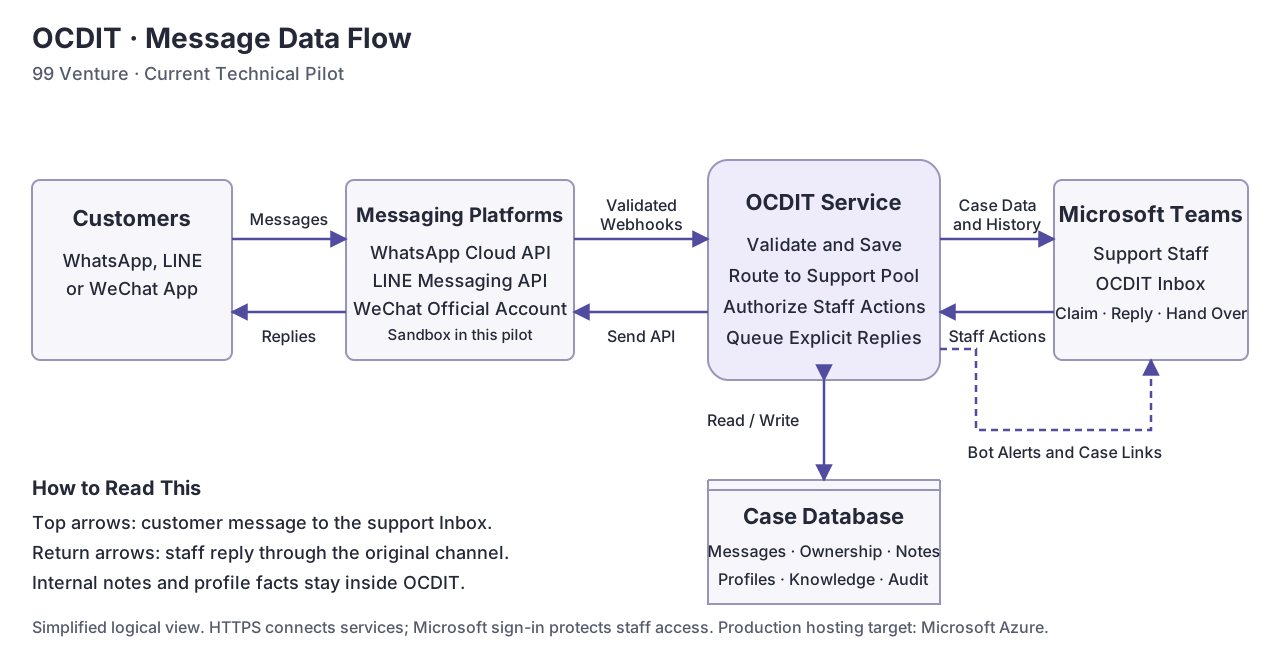
- Receive: the messaging platform sends a webhook to OCDIT. OCDIT validates it and saves the message before acknowledging receipt.
- Work: authorized staff open the shared Inbox in Teams, claim a case and read its history. Bot cards provide alerts and links through the Microsoft bot service.
- Reply: staff explicitly send a reply. OCDIT checks ownership and channel rules, stores a delivery job, then calls the original platform's API. Provider acceptance and available delivery receipts update the recorded outcome.
- Retain: the pilot's SQLite database stores messages, ownership, internal notes, profiles, knowledge and audit history. Internal notes and profile edits do not trigger customer sends.
Staff sign in through Microsoft Entra ID. The Inbox talks to OCDIT over authenticated HTTPS; it does not hold channel credentials. Channel credentials stay on the server. The diagram shows the current logical flow; production hosting will target Microsoft Azure. An uncertain provider send is held for review, not automatically resent.
1. Gather Access
| Who | Preparation | Done When |
|---|---|---|
| Sponsor | Name account owner, tester and hosting budget. | Ownership and spending limits recorded. |
| Microsoft Admin | Sign in to Azure and Teams Admin. | Correct tenant selected; tester has Teams access. |
| Meta Admin | Sign in to Meta Developers. | Approved business portfolio available. |
| LINE Admin | Install LINE and sign in to Official Account Manager. | Phone verification and Business ID sign-in complete. |
| Hosting Admin | Supply SSH access, isolated hostname and DNS access privately. | Owned HTTPS hosting available. |
| Tester | Keep WhatsApp, LINE and WeChat available on the phone. | Can enter codes and send fictional enquiries. |
The human handles sign-in/MFA, phone codes and required legal acceptance. Agents can prepare forms, configuration, deployment and tests within approved scope. Never paste secrets into chat, screenshots, source control or the solution ZIP. Use 99 Venture-owned assets for rollout; do not promise pilot account transfers.
2. Prepare the Runtime
- Install Node 24 satisfying
package.json, npm and Python 3. - Run
npm ci, thennpm test. The current suite has 23 checks. - Copy the required values from
.env.exampleinto a private environment file. Use a fresh live database, separate from the simulator. - Follow Native Deployment: isolated service, private disk, unused loopback port, dedicated nginx site, DNS and HTTPS certificate.
- Serve the supplied test policy pages at
/privacyand/terms. Replace them with approved policies before real customer use. - Proxy
/api/messages,/webhooks/whatsapp,/webhooks/line,/healthz, optional/webhooks/wechat,/inbox/and/inbox-api/to OCDIT. Redirect/inboxto/inbox/. - Include
dist/,public/,package.json,package-lock.jsonand production dependencies. Includescripts/backup.pyfor recovery checks. The Inbox serves the installed Teams JavaScript SDK too. - Build the public guides with
python scripts/build_guides.pyafter installingscripts/docs-requirements.txt. Serve onlypublic/guides/at/guides/as static content. Keep all source, secrets, databases and private notes outside the web root.
Start live mode after completing Microsoft and WhatsApp configuration. LINE is optional, but its three values must be supplied together. This runtime requires WhatsApp configuration even for a LINE demonstration. Adding LINE needs no extra Azure resource.
3. Configure Teams
- In Azure, create an isolated resource group and single-tenant Azure Bot. Choose F0 Free if available; obtain a cost decision before any paid resource.
- Use its dedicated Entra app registration. Record application and tenant IDs. Create a client secret; save its value privately immediately and record expiry. A secret ID is not the value.
- Set the bot endpoint to
https://HOSTNAME/api/messages. Enable its Microsoft Teams channel for the tenant's cloud. - Create a private pilot team and standard support channel with the authorized
tester. Obtain the native Teams team/channel IDs from channel links or validated
bot activity. URL-decode copied IDs.
TEAMS_TEAM_IDstarts with19:; do not use the Entra group GUID. - In Entra, find the tester's Object ID. Put it and their display name in
PILOT_ACTORS. Do not substitute email or application ID. - Follow Inbox Sign-In Setup: expose
api://HOSTNAME/botid-CLIENT_ID, addaccess_as_user, preauthorize the documented Teams clients and setapi.requestedAccessTokenVersionto2. - Build the install ZIP below, replacing placeholders. Use the HTTPS site root
for
--website, without a path or trailing slash.
python scripts/package_teams.py --client-id CLIENT_ID --website https://HOSTNAME --privacy https://HOSTNAME/privacy --terms https://HOSTNAME/terms --output teams/ocdit.zip
- If custom upload is blocked, prepare a pilot app setup policy assigned only to the tester. Do not modify global policies. Allow propagation time.
- Install the ZIP into the pilot team and personally for the tester. Pin OCDIT, open Inbox and verify sign-in. Personal installation registers the bot conversation used for assigned-case notifications.
The implementation needs no added Graph API permissions. Troubleshoot IDs, scope and token version before considering permission changes. The manifest's store copy currently describes WhatsApp; the same Inbox supports all three configured channels. See Microsoft's SSO Guide.
4. Configure WhatsApp
- Open Meta Developers → Create App. Choose WhatsApp business messaging and the approved portfolio. Create an isolated OCDIT test app. Portal labels may change.
- Open WhatsApp API setup/testing. Complete required terms. Select Meta's test business number; do not migrate an existing business number.
- Add the tester's number with country code. The tester enters Meta's code. Confirm the number appears as an allowed recipient.
- Save the phone-number ID as
WA_PHONE_NUMBER_ID. Record WABA ID privately for setup checks. Neither is the visible telephone number. - Generate a scoped token and save it as
WA_ACCESS_TOKEN. Record actual expiry and permissions. Prepare renewal before a meeting; production needs a deliberate service-credential plan. - Open App Settings → Basic. The human completes any password prompt. Capture
the app secret privately as
WA_APP_SECRET. - Generate and privately save a random
WA_VERIFY_TOKEN. This webhook challenge token is separate from the access token. Select a supportedWA_GRAPH_VERSIONfor this app; the tested pilot usedv25.0. - Deploy the populated live configuration. Set Meta's callback to
https://HOSTNAME/webhooks/whatsapp, enter the matching verify token and verify. - Subscribe to messages and confirm the app is subscribed to the intended WABA. Saving a callback alone is insufficient. Use the app's subscription controls or documented WABA subscription API with the scoped credential.
- Use Meta's test send to the verified recipient. The tester replies to that business chat. Continue with the round-trip check below.
OCDIT free-text replies require a customer message within 24 hours. There is no template composer; begin a fresh enquiry when rehearsing outside that window. This sequence reflects the observed pilot. Meta's Setup Documentation could not be retrieved during this documentation pass. Recheck current terms, pricing and production permissions in the target account.
5. Configure LINE
- In Official Account Manager, create OCDIT Pilot under the approved owner. Select the correct country and inspect the free plan. The Singapore pilot had 500 messages; other regions may differ.
- Open Settings → Messaging API → Enable Messaging API. Complete approved developer registration and agreements. Create a dedicated provider. Confirm ownership before saving: the provider assignment cannot be changed later.
- Supply approved privacy/terms URLs. In Developers Console, select the provider and Messaging API channel.
- Save Channel Secret privately as
LINE_CHANNEL_SECRET. Under Messaging API, issue a token and saveLINE_CHANNEL_ACCESS_TOKEN. The pilot uses a long-lived token; plan deliberate rotation before production. - From a private script, call
GET https://api.line.me/v2/bot/infowith the token in the Authorization Bearer header. SaveuserIdasLINE_BOT_USER_IDand verify the returned account name/basic ID. Do not use the numeric channel ID or developer's own user ID. Never print credentials or request headers. - Check
/v2/bot/message/quotaand/v2/bot/message/quota/consumptionusing the same private authentication. Record allowance and remaining capacity. - Deploy all three values. Set the webhook to
https://HOSTNAME/webhooks/line→ Update → Verify. Expect Success. - Enable Use Webhook and Webhook Redelivery. Read the duplicate/order notice; OCDIT deduplicates received messages by provider message ID.
- In Settings → Response Settings, disable Greeting Message and Auto-Response Messages. Keep Webhooks enabled and group chats disabled.
- Add the account as a friend using its QR code or basic-ID friend link. Send a fictional enquiry, then run the check below.
The portal sequence follows LINE's Bot Setup Guide. OCDIT permits replies for seven days after a customer message. Push replies consume the plan allowance. Accepted confirms API acceptance, not delivery or reading. See LINE Rules and Remaining Scope.
6. Configure the WeChat Sandbox
- Human: sign in at the Official Account Test Portal and scan the login QR with WeChat. Follow the separate sandbox QR as a test subscriber.
- Human: check the account permissions include customer-service sending. Save the AppID, AppSecret and
gh_account identity privately. - Agent: set
WECHAT_APP_ID,WECHAT_APP_SECRET,WECHAT_ACCOUNT_IDand a new randomWECHAT_VERIFY_TOKENtogether. Follow WeChat Setup and Limits for the supplied protocol references and token requirements. - Agent: deploy the configuration and HTTPS
/webhooks/wechatroute. Verify a valid signed GET challenge echoes its challenge and an invalid signature is rejected. - Human: enter
https://HOSTNAME/webhooks/wechatand the matching Token in the sandbox → green 提交 (Submit). Keep the successful result. This session's browser automation policy blocks the sandbox and inspected documentation page; do not switch tools to bypass it. - Tester: send a fictional enquiry. Continue with the round-trip check below.
This is an Official Account sandbox, not personal-account chat access or WeCom Customer Service. It uses plain XML over HTTPS; encrypted mode is deliberately rejected. Do not enable real customer traffic until the production account path and encrypted callbacks are implemented and validated. The JS security domain and template-message sections are not needed for this text pilot.
7. Set Staff and Knowledge Reviewers
- In the private live environment, set
PILOT_ACTORSto the approved employees' Entra Object IDs and display names. The supported pilot list contains 1–30 employees. - Set
KNOWLEDGE_REVIEWERSto a JSON array containing only IDs already in that list. An empty array disables approval. - Keep
KNOWLEDGE_ALLOW_SELF_REVIEW=falsefor independent review. Usetrueonly for an explicitly approved single-person test; the library displays the exception. - Restart only OCDIT. Sign in as each authorized tester and verify the displayed identity and allowed controls. No Graph permission or tenant role is added for knowledge review.
- Create a fictional candidate from an owned case. Verify a designated reviewer can approve with a reason and future UTC review date. Verify an ordinary employee cannot approve. For a one-person pilot, demonstrate separation only in the labeled simulator until another account is authorized.
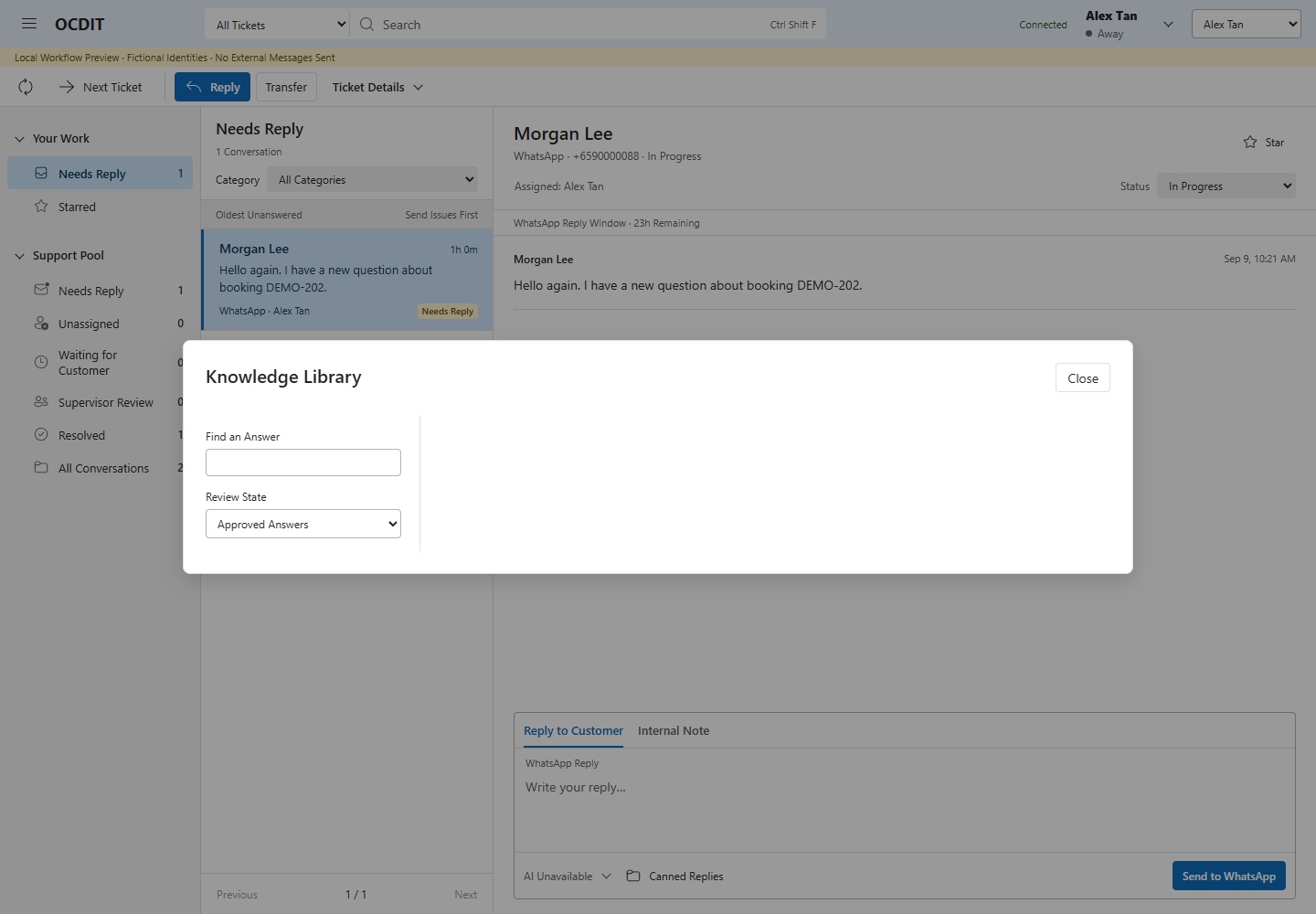
Expected application result with fictional staff. Reviewer permissions come from configuration, not a Manager suffix in the display name. Use the full Knowledge Guide for revision, expiry and reuse.
The whole enabled pool can read all case history and knowledge. There is no subsidiary isolation, granular manager permission or production access administration. Do not put separate subsidiaries into one pool on the assumption that Teams membership partitions the data.
8. Verify Each Channel
- Send a fictional enquiry from the tester's phone.
- Open Teams → OCDIT → Inbox → Unassigned. Check channel label and text.
- Choose Pick Up. Confirm the tester becomes owner.
- Save an Internal Note. Confirm it stays off the phone.
- Choose Reply to Customer, type a response and press the channel's Send button. Confirm it arrives on the phone.
- Reply from the phone. Check the same case, retained owner, Mine · Needs Reply and assigned-staff notification/link.
- Record date, channel, result and limits in
docs/TEST-EVIDENCE.md. Keep actual phone numbers, customer text and provider IDs in private records.
WhatsApp supports delivery/read receipts. LINE and WeChat show acceptance only. Demonstrate handover in the labeled simulator until multiple authorized staff are available. Health and simulated tests do not prove live delivery.
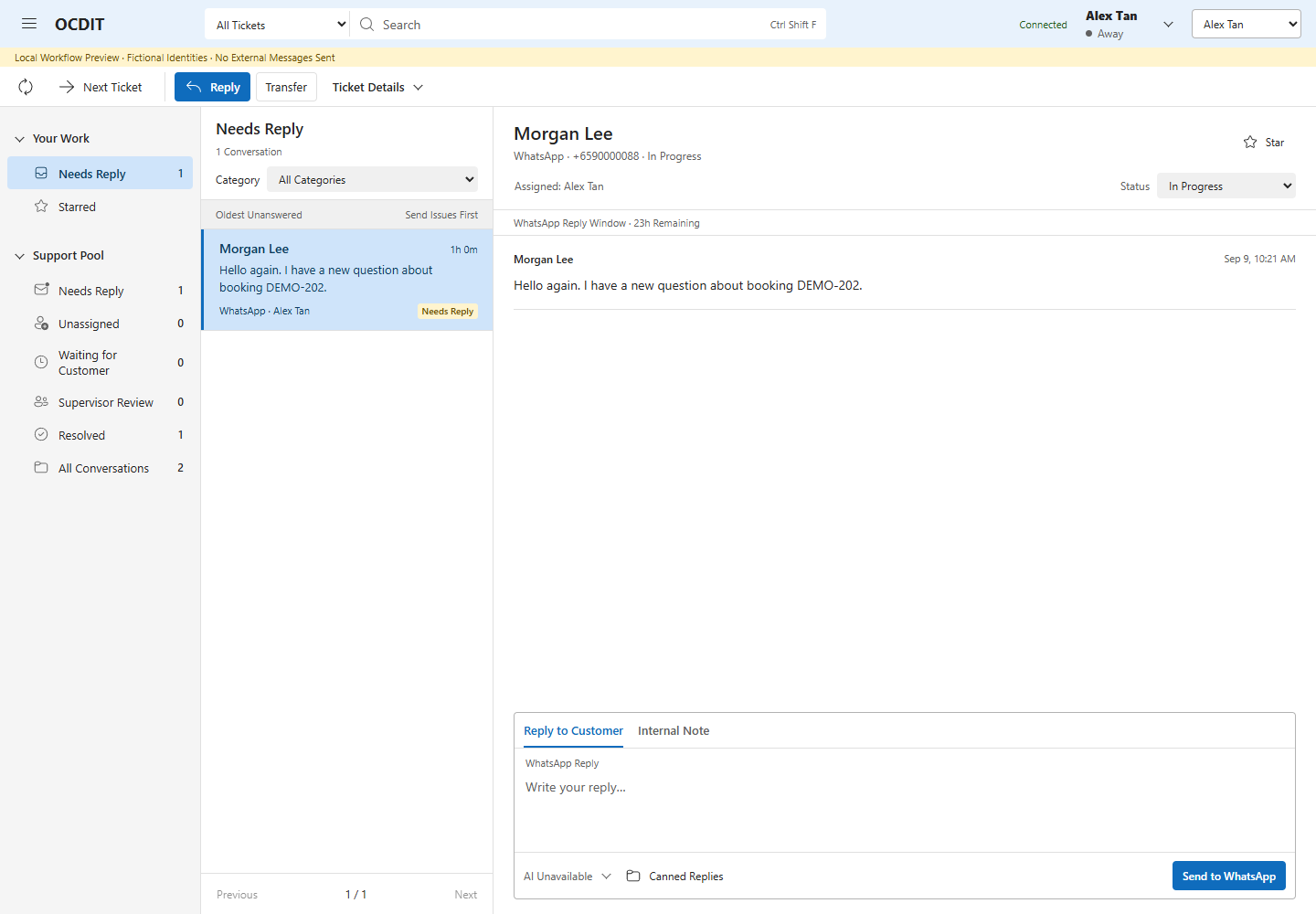
Acceptance target: correct channel, owner and history in the same Inbox. Preserve real test evidence privately; screenshots alone do not prove phone delivery.
9. Troubleshoot
| Symptom | Check First |
|---|---|
| Startup fails | Required values, actor JSON, Node version, permissions and DB scope. Never delete scope guards to reuse another account's DB. |
| Callback verification fails | DNS/TLS, route, service and the channel verify token/signature configuration and destination. |
| No inbound enquiry | WhatsApp messages/WABA subscription; LINE Use Webhook; WeChat successful callback submission and followed sandbox; correct test account; signature rejection. |
| Inbox sign-in fails | Tenant/app/actor Object IDs, API URI, scope, Teams preauthorization and version-2 tokens. |
| Case exists but no alert | Native team/channel IDs, bot installations and durable Teams job state. |
| Reply fails | Window, token validity, recipient eligibility, quota and provider error. |
| Reply is Uncertain | Investigate provider outcome before manual resend. Never reset jobs or repeatedly click Send. |
| Extra LINE response | Pilot greeting/auto-response settings. |
Before updates, retain the app, environment, nginx file and a consistent SQLite backup. Restart only OCDIT; test nginx before graceful reload. Restoring an old DB can lose new messages or resend old jobs, so it needs a separate recovery decision.
10. Pause and Resume
The configured pilot needs no new signup. Check credentials, health and Inbox, then request a test message when the human is available. A portal session may require fresh human sign-in; that is not a reason to recreate the channel account. Use Operations for pre-meeting checks, backups, incidents and updates. No background monitoring is implied by this guide.
Configuration Reference
Copy .env.example from the solution package into a private runtime file. Do not use the placeholders literally. Live mode validates configuration and rejects a database previously bound to another pilot scope.
| Group | Values and Source |
|---|---|
| Runtime | MODE=live; isolated DB_PATH; HOST=127.0.0.1 and an unused PORT for a native reverse-proxied service. |
| Microsoft | CLIENT_ID, CLIENT_SECRET, TENANT_ID from the isolated Entra app; TEAMS_TEAM_ID and TEAMS_CHANNEL_ID from native Teams context. |
| Employees | PILOT_ACTORS JSON array of objects with id and name; use employee Object IDs. |
WA_PHONE_NUMBER_ID, WA_APP_SECRET, WA_VERIFY_TOKEN, WA_ACCESS_TOKEN, WA_GRAPH_VERSION from the approved app and privately generated challenge token. All required in live mode. |
|
| LINE | LINE_CHANNEL_SECRET, LINE_CHANNEL_ACCESS_TOKEN, LINE_BOT_USER_ID together, or leave all unset. |
WECHAT_APP_ID, WECHAT_APP_SECRET, WECHAT_ACCOUNT_ID, WECHAT_VERIFY_TOKEN together, or leave all unset. |
|
| Knowledge | KNOWLEDGE_REVIEWERS array of enabled actor IDs; KNOWLEDGE_ALLOW_SELF_REVIEW=false normally. |
A single private environment file is loaded by the service. Keep values out of shell history, terminal captures and screenshots. Record credential owner/expiry separately. This implementation does not offer an admin credential-entry webpage.
Microsoft SSO and LINE setup documentation were rechecked on 7 September 2026. Meta's direct documentation page could not be fetched; its sequence is based on the observed working pilot. WeChat steps rely on user-supplied official exports and the verified sandbox. Recheck account-specific plan, entitlement and portal wording at provisioning time.
Configure Supervisors
- Choose existing enabled employee IDs for the supervisor role.
- Set
SUPERVISORSto their JSON array in the private runtime environment. Keep[]to disable the role. - Restart only the OCDIT service during a planned test window. Confirm sign-in and the supervisor controls in Inbox.
- Rehearse escalation, decision and absent-owner recovery with fictional data. Verify ordinary staff receive no override.
Supervisor access is separate from knowledge review and directory roles. No additional Microsoft permission is required. Every supervisor can recover any active case within this pilot's configured pool; subsidiary-level restrictions remain a production gate. All enabled staff can view the Escalated queue. The single-user pilot demonstrates the controls, while the local simulator demonstrates distinct people.
See Escalation and Recovery for exact behavior and audit fields.
Configure Customer Profile Use
- Agree permitted facts and identity checks with the support manager. Use fictional data for this pilot.
- Deploy the current app; profile tables are created in the existing database. No new account, permission or cloud resource is needed.
- Rehearse as an owner: create/link, add an unverified fact, verify with evidence, correct and unlink.
- Rehearse with a second local actor: read access remains, but edits require ownership of an active linked case.
- Agree retention/deletion and subsidiary access rules before real customer data. Unlinking and Remove Fact preserve history; they do not erase it.
See Customer Profiles. Profiles share the existing authorized support pool; there is no separate profile permission administration screen.
Configure Discovery and Agent Studio
- Deploy the current package, including
demo/and the installed Three.js dependency. The same image runs locally and on Azure; keep both SQLite files on persistent storage with one application process. - Set
STUDIO_ENABLED=trueandSTUDIO_DB_PATHto a new file beside, not equal to,DB_PATH. Keep this archive in the backup and retention plan. - Keep
OPENROUTER_API_KEYunset for simulation. For the authorized fictional model demo, save the dedicated key in server-only configuration and set its provider-side limit to US$3. The application caps Studio at 100 requests and US$3 reserved usage. GPT-5.4 Mini is the current approved OpenRouter model. Each call reserves US$0.04 until actual cost is recorded. - Restart only OCDIT. Sign into Administration → Agent Studio as an existing
PLATFORM_ADMINSidentity. Tenant staff receive no Studio management access. - Follow Agent Studio: import the fictional pack, discover, review knowledge and processes, configure and publish the two agents. No Graph permission is required.
- In the deployed tenant-wide AI update, enable Enable AI and set the daily request limit in Administration. Do not configure
STUDIO_SUPPORT_CASESor grant AI per ticket: neither controls use in this update. Preserve capture exclusions, history permission, feature switches, provider/publication/stop checks and token/cost limits. Knowledge Permissions controls reuse only. The demonstration budget remains 100 requests/USD3. - In Teams, claim that case and choose Agent Reply. Review and insert a draft, then use the normal explicit Send action. Verify customer receipt and the central Run Ledger trace.
- To pause new and queued agent replies, use Agents → Monitor → Pause Agents. Changing a publication, process, source permission, platform policy or case data-use version invalidates earlier drafts.
Studio records are a separate archive. A support retention review is blocked while Studio holds a copy of the case; arrange approved archive disposition before finishing deletion. Keep the archive path configured when disabling Studio so the retention guard remains aware of it. Exported bundles and backups also need disposition.
Configure Staff Feedback
- Use the existing enabled staff and
SUPERVISORSconfiguration. No new permission is needed. - Ask the manager to confirm feedback categories and report definitions in Staff Feedback.
- Rehearse a fictional suggestion, source-message review and decision. Use distinct staff and supervisor accounts when production access is ready.
- Include feedback and review history in the database retention policy. Set a business baseline before reporting improvement claims.
Data Flow
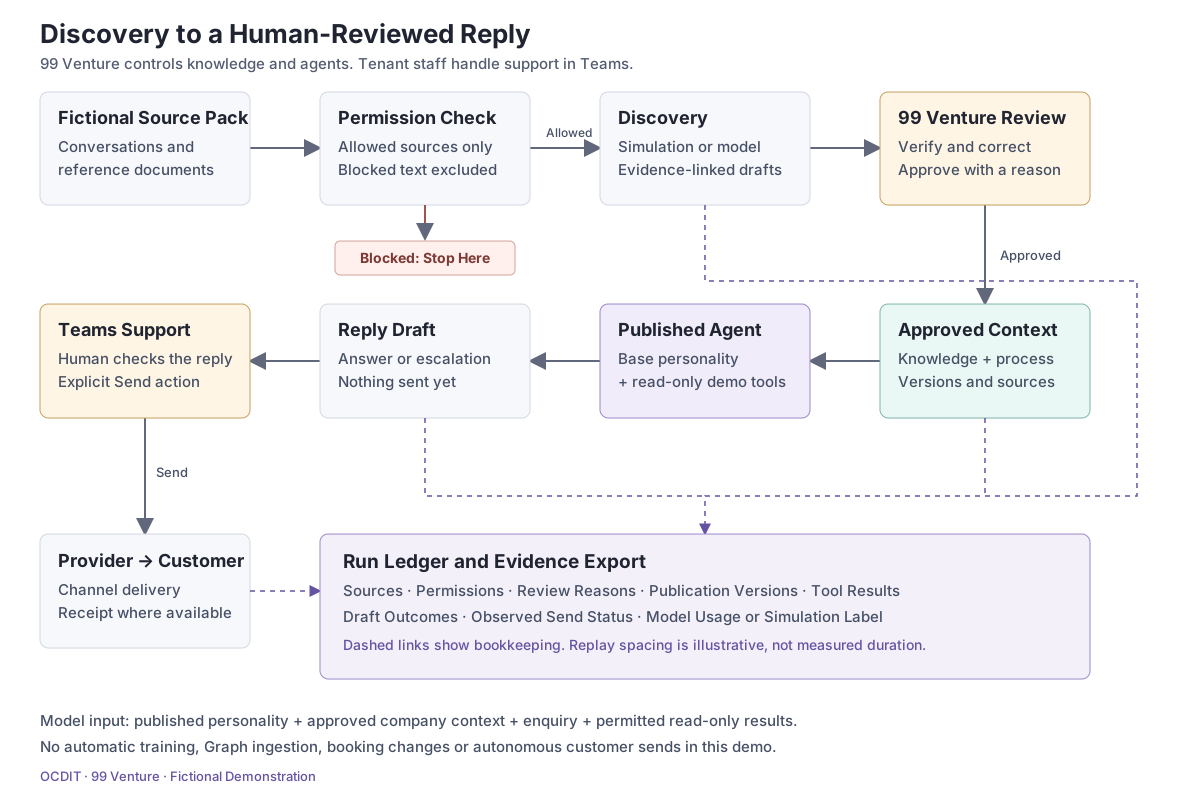
Solid arrows show the data path; dashed arrows show recorded evidence. Blocked sources stop before discovery. The published persona uses approved company context and read-only demo tools; the tenant employee reviews and explicitly sends the reply. The ledger stores observable steps and outcomes, not private model reasoning.