OCDIT Studio Guide
Updated 9 September 2026
Support Workflow Release · 9 September 2026: Simplified menus and tenant-wide AI are deployed. Screenshots use fictional local data.
99 Venture uses Studio to review company evidence, publish knowledge and configure agents. Tenant staff use the Teams support flow. Being a support supervisor does not grant Studio access or authority to publish knowledge or agent instructions.
The bundled company sources and tool records are sample data. When enabled, model calls are real; Deterministic Simulation runs without a model.
Open Studio
- Open
/admin/studio/on your OCDIT deployment. - Choose Sign In with Microsoft and use an authorized administrator account.
- Start with Discovery. The navigation also contains Process Map, Knowledge, Agents, AI Feedback and Run Ledger.
AI Studio shares its navigation and appearance with Administration. Use Workspaces or Support Settings in the left navigation to switch areas. Select Appearance at the top right for Light, Dark, High Contrast or Use Teams or System. On narrow screens, use Toggle Navigation first.
Stage 2: Discover and Review
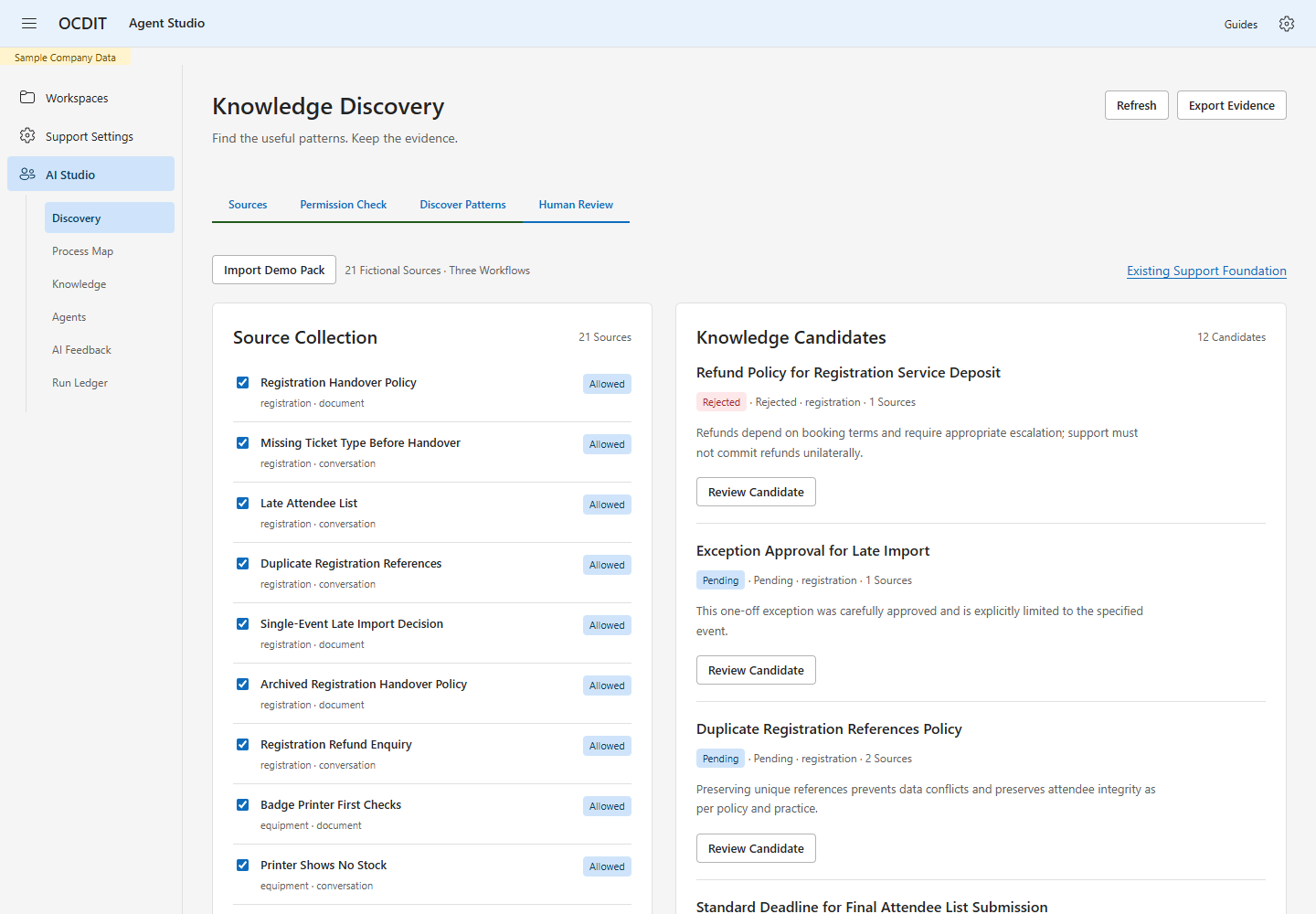
- Choose Import Demo Pack to load the bundled 99 Events Demo pack.
- Select the permitted sources for the exercise. Blocked sources cannot be used.
- Choose Deterministic Simulation for a repeatable, no-model rehearsal, or Real Model Discovery when the administrator has configured the provider.
- Choose Discover Patterns, then Review Candidate.
- Check the supporting evidence. Correct the Supported Answer or Finding, assign Knowledge Owner, Review By and Expires At, then record a Review Reason and choose Approve Knowledge. Rejection needs a reason, but does not require an owner or dates.
Simulation groups sources by workflow and copies each current policy into a candidate. It does not discover new facts. Model mode proposes supported findings from the selected evidence; those findings still need review. A citation shows which source was supplied, not proof that the model interpreted it correctly.
The pack deliberately includes an obsolete registration deadline and one-event exceptions. Keep the current 48-hour deadline and do not turn a historical exception into standing policy. Discovery creates drafts; it does not publish automatically. The demo scenarios list the expected checks.
Keep Knowledge Current
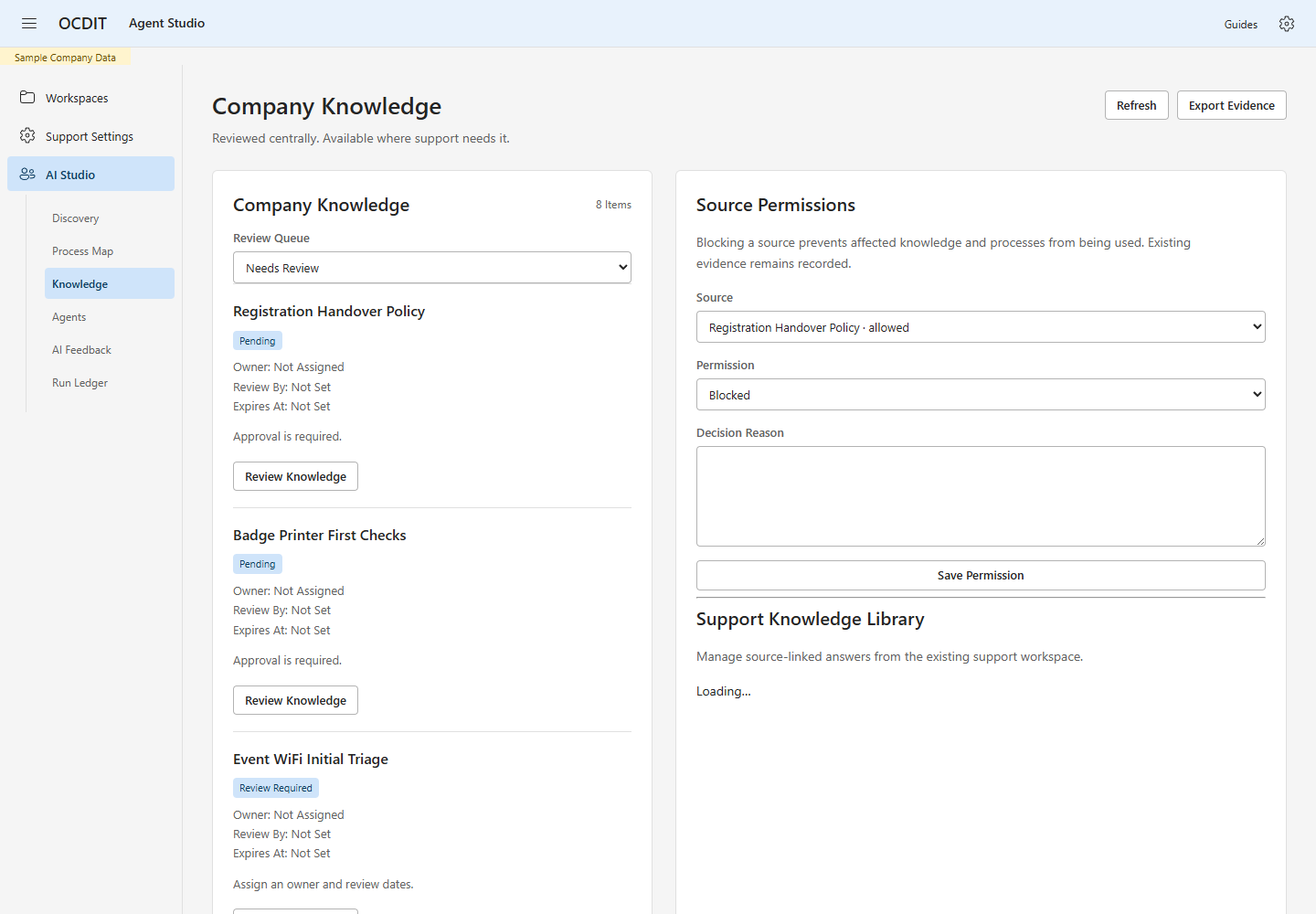
- Open Knowledge and select Needs Review in Review Queue.
- Choose Review Knowledge. Check the source evidence and current wording.
- Set Knowledge Owner, Review By and Expires At in your local time. Both dates must be in the future, review must be no later than expiry, and expiry must be within 366 days. The owner is an accountable label, not an access grant or an automatic notification recipient.
- Enter Review Reason and choose Approve Knowledge.
- In Process Map, select each affected process and approve its revised supporting evidence. Then save and publish the affected agent revision.
Review Due and Expired both block use. Items without lifecycle fields show Review Required; an old approval alone does not keep them usable. Current shows knowledge eligible for reuse. Refresh the queue when starting a review.
The server rechecks dates at publication, generation, draft insertion and delivery. A draft can become unavailable while it is open. Renewal creates a new version; it does not reactivate old drafts. Review history and prior evidence remain stored. No email or reminder messages are sent by this queue.
Stage 3: Inspect the Flow
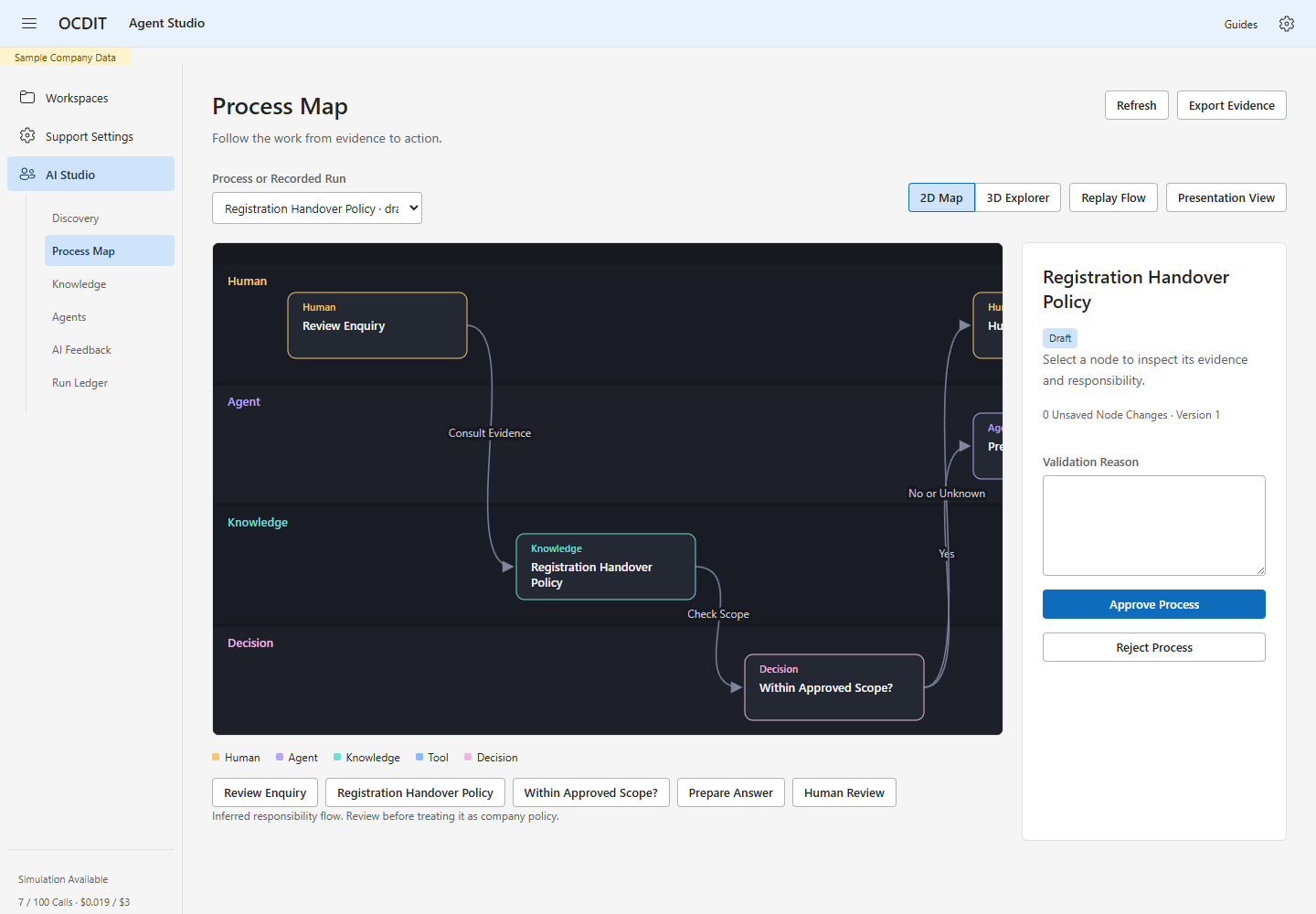
- Open Process Map and choose Process or Recorded Run.
- Select a node, or use the Process Nodes buttons, to inspect its evidence.
- Choose Process Details to return to the process review.
- After approving its supporting knowledge, enter Validation Reason and choose Approve Process or Reject Process.
The 2D map groups nodes by responsibility. Human, agent, knowledge, tool and decision labels remain visible as well as their colors. A process is a proposed responsibility flow until reviewed. A recorded run shows the steps the application stored.
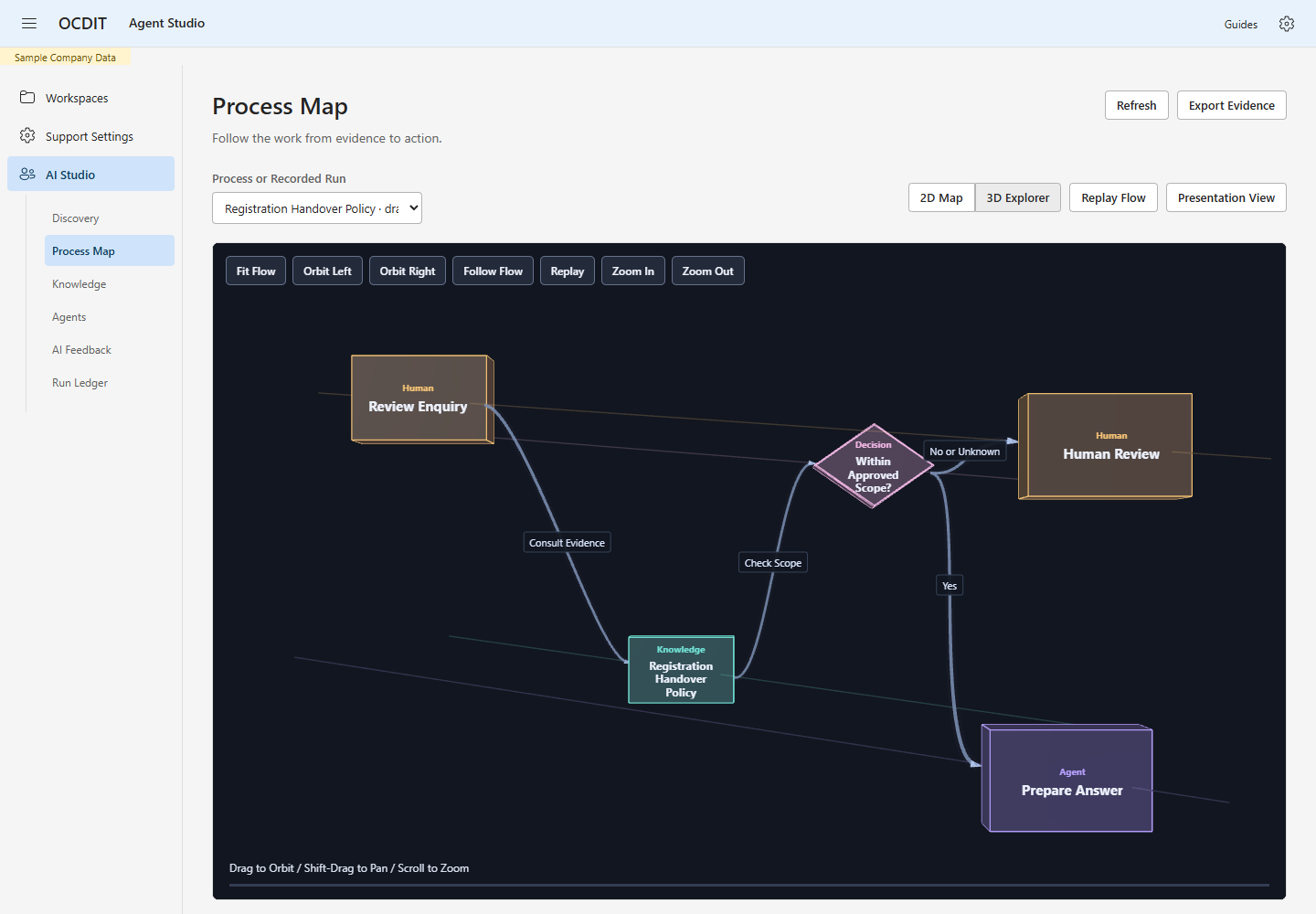
Choose 3D Explorer for dimensional process cards, decision diamonds and directed paths. Select a node to highlight its downstream connections and inspect evidence. The process advances through 3D space, with responsibility tracks at different heights and depths. Drag to orbit, hold Shift while dragging to pan, or scroll to zoom. Fit Flow restores the overview. Orbit Left and Orbit Right rotate the camera; enable Follow Flow and choose Replay to travel along the connections. Use Presentation View for a full-screen canvas. On narrow screens, small nodes show numbers; zoom in for their labels or select a node to open its details. 2D Map and the node buttons remain alternatives when 3D is unavailable or inconvenient. Replay Flow follows the saved edge order with a moving packet; its spacing and depth are illustrative, not measured elapsed time or importance. Reduced-motion settings remove the animated traversal.
The inspector explains sources, checks, decisions and results. It does not expose a model's private reasoning. Neither view proves that a proposed process was executed by staff or that a customer issue was resolved.
Stage 4: Build and Publish an Agent
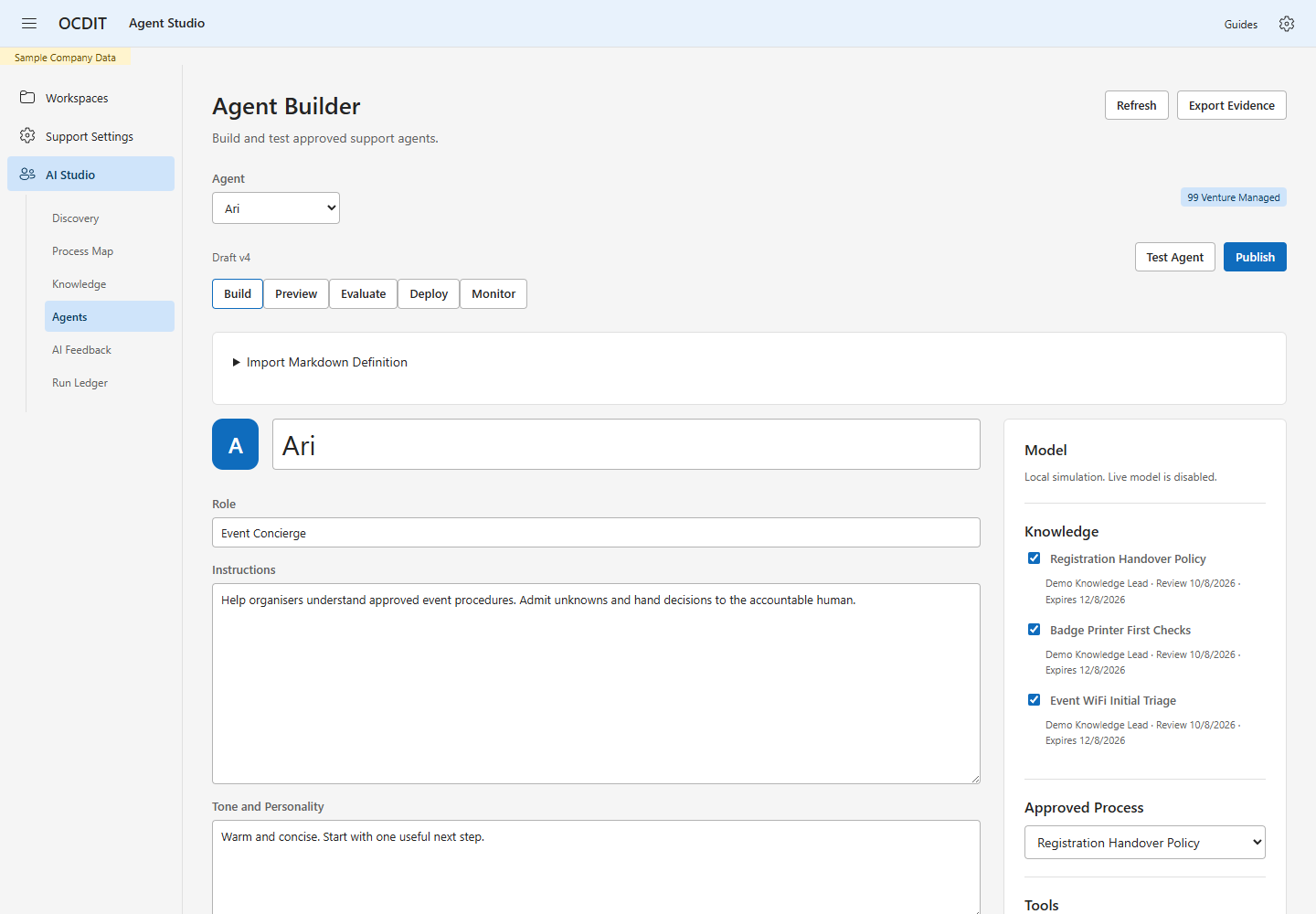
- Open Agents and select Ari or Rowan.
- In Build, set Agent Name, Role, Instructions and Tone and Personality.
- Select approved Knowledge, an Approved Process, permitted Tools and an Owner.
- Enter Change Reason and choose Save Draft.
- Expand What Changed to compare the saved revision with the last publication.
- Enter Publication Reason and choose Publish Saved Revision.
Tone and Personality accepts up to 500 characters across multiple lines. Owner records who is responsible for the agent; it does not grant a platform role or change ticket assignments. Both fields are saved in preview snapshots and shown in publication comparisons.
Ari starts warm and concise; Rowan starts calm and precise. Their personality is an administrator-owned instruction set, not an independent identity or a trained model. Publication snapshots the saved personality, knowledge and process versions. Customer-use drafts require a published revision. Working Draft tests can run before saving or publishing, using a separate, never-sendable snapshot. What Changed compares saved fields and evidence versions; unsaved edits are excluded.
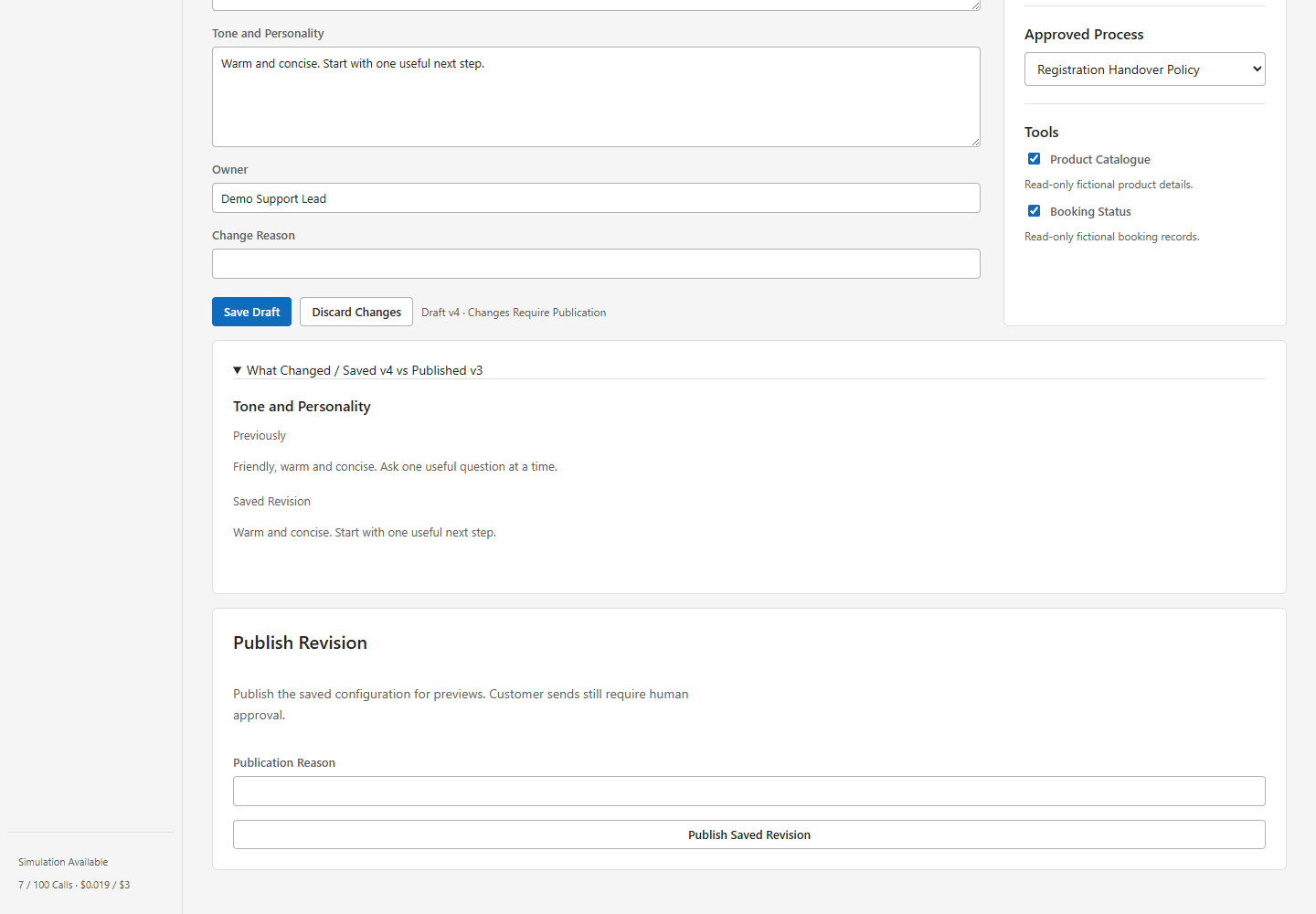 Unsaved Build fields remain available when you switch agents or Studio views within
the same page. Save before reloading or closing the browser; these edits are not
stored permanently, and the browser warns when unsaved Build changes remain.
Choose Discard Changes to reload the selected agent's saved revision.
The configured model receives the published personality, selected approved company knowledge and the enquiry, plus any permitted read-only fixture results. There is no automatic fine-tuning, persistent personal memory or model-weight training. Test Agent opens Preview, and Publish opens the publication form from any builder view. Neither shortcut performs a model call or publishes immediately. The builder uses Build, Preview, Evaluate, Deploy and Monitor structure; it is OCDIT's own interface, not Copilot Studio.
Import a Markdown Personality
- In the selected agent's Build view, save or discard existing edits.
- Expand Import Markdown Definition and choose a
.mdfile of at most 16 KB. - Review the parsed name, role, tone and instructions, plus its definition version and SHA-256.
- Enter Import Reason → Import Working Draft.
- Review the saved working draft, test it, then explicitly publish the saved revision when ready.
Definitions use one agent-name heading, Agent ID, Definition Version and Role metadata, and the sections Tone and Personality, Instructions, Job Scope, Boundaries and Escalation and Example. Use the repository examples in docs/personas/ARI.md and docs/personas/ROWAN.md. Front matter, code blocks, unknown sections and mismatched agent IDs are rejected. Increment Definition Version when changing an already imported definition.
Import records source text, filename, hash, actor and version. It updates only the personality fields in a working draft; it does not provision tools, choose new knowledge, publish or run a model. Existing knowledge/process/tool selections still require their usual checks.
Check Deployment Readiness
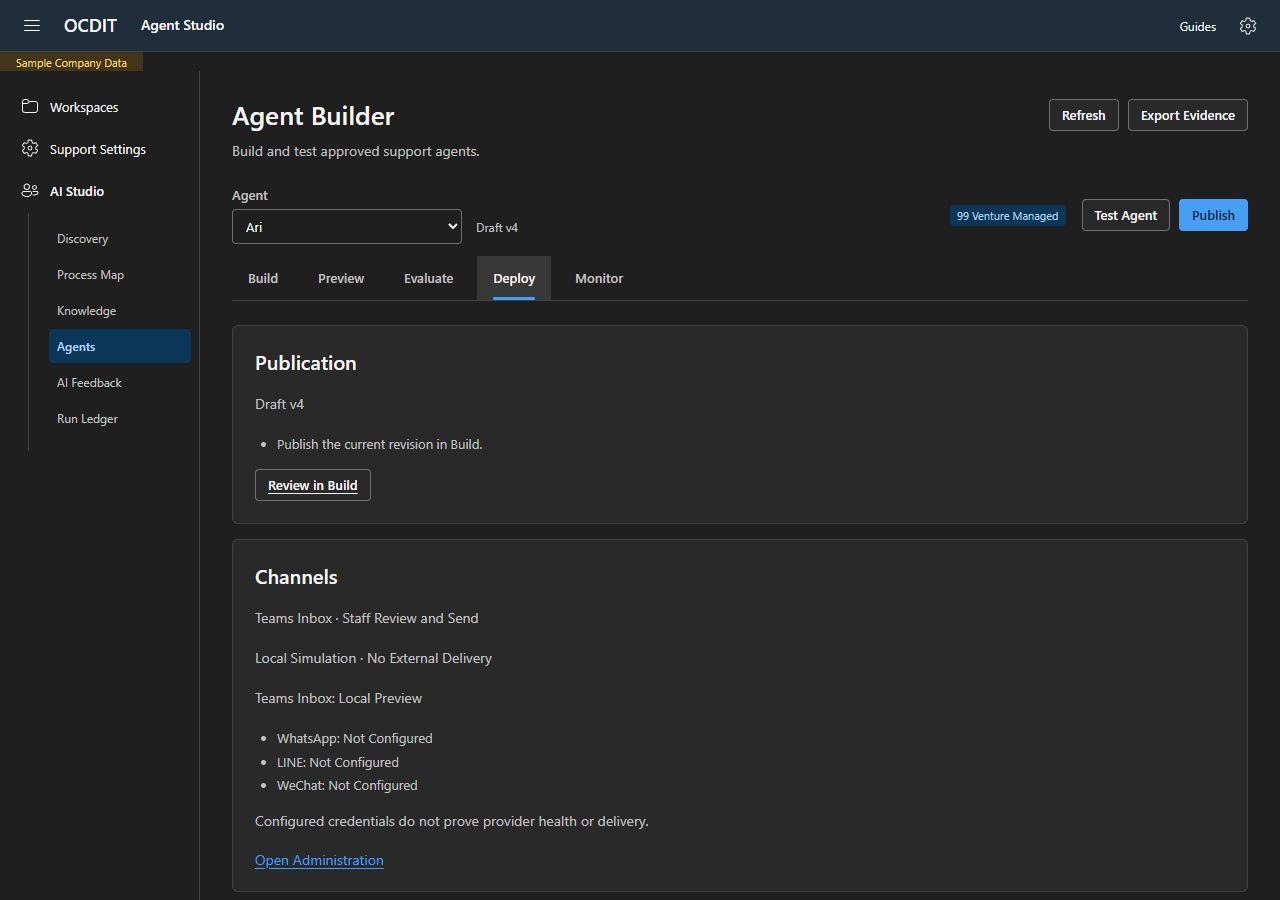
- Open Agents → Deploy and review Publication. Resolve listed blockers in Build before using the published revision for customer replies.
- Check Channels for the current deployment mode and configured destinations. Not Configured means no live destination is configured for that channel.
- Check Reply Eligibility for workspace AI policy, the daily request limit and the number of tickets enabled for agent replies. Individual requests still check staff assignment, ticket state, capture/history access, publication and available quota.
- Use Open Administration when deployment settings need review.
This view reports configuration, not a provider health check or proof of delivery. A local demo shows Local Simulation · No External Delivery. Publishing does not provision connectors or enable tenant AI; connector setup remains an administrator task. Working Draft tests stay separate and cannot be sent.
Review Staff Suggestions and Case Studies
Open AI Feedback → Suggestions and Case Studies. Choose a staff feedback or resolved case-study source; use Previous Sources and Next Sources to reach later pages. Import for Review creates a central improvement item without sending a message or running a model.
Select Review Improvement and record a reason for Planned or Declined. Before recording Implemented, make the actual changes, publish the relevant agent revision and run its evaluations after the source import. Link that current publication, at least one completed evaluation and applicable knowledge references. The review retains the evidence. Merely submitting feedback, nominating a case or importing it does not train an agent.
Tenant staff submit AI Feedback through Teams and can read accessible submission evidence. 99 Venture owns the improvement decisions here. See AI Feedback and Service Improvement.
Preview and Evaluate
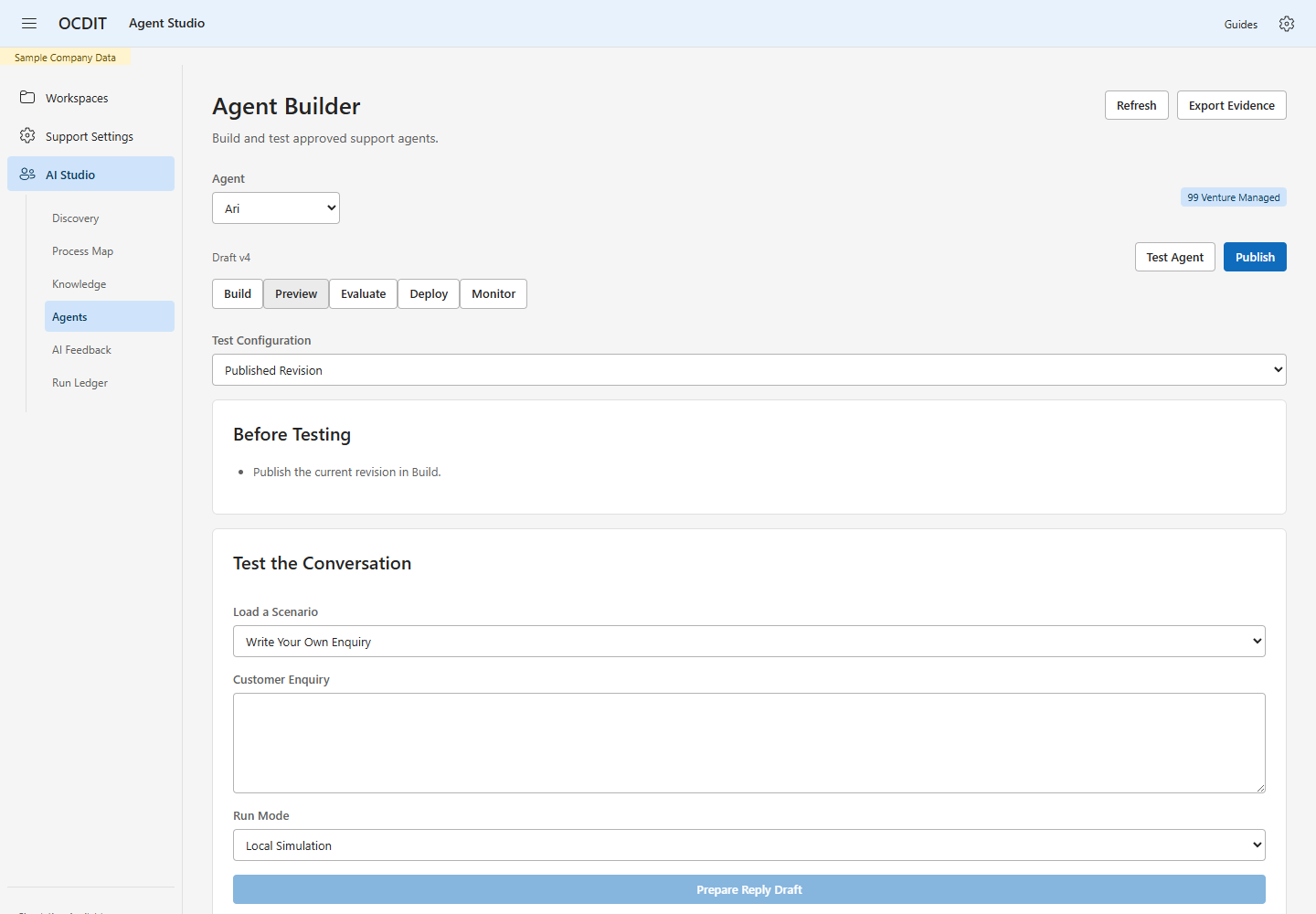
- Choose Preview, then Published Revision under Test Configuration. Resolve Before Testing items. Named Review links open the affected knowledge or process; Update Agent returns to Build.
- Open Personality, Knowledge and Tools to inspect the published instructions, knowledge versions, process and permitted tools that the run will use.
- Choose Load a Scenario, or write Customer Enquiry yourself. Select Run Mode, then Prepare Reply Draft.
- Read the draft and escalation outcome. Choose View Trace to inspect context and tool evidence.
- Choose Evaluate and select Run Scenario for the check you want.
- Open Check Results to compare the expected and actual outcome and each matched or missing phrase. Results identify the publication version; rerun a historical result after publishing a changed agent.
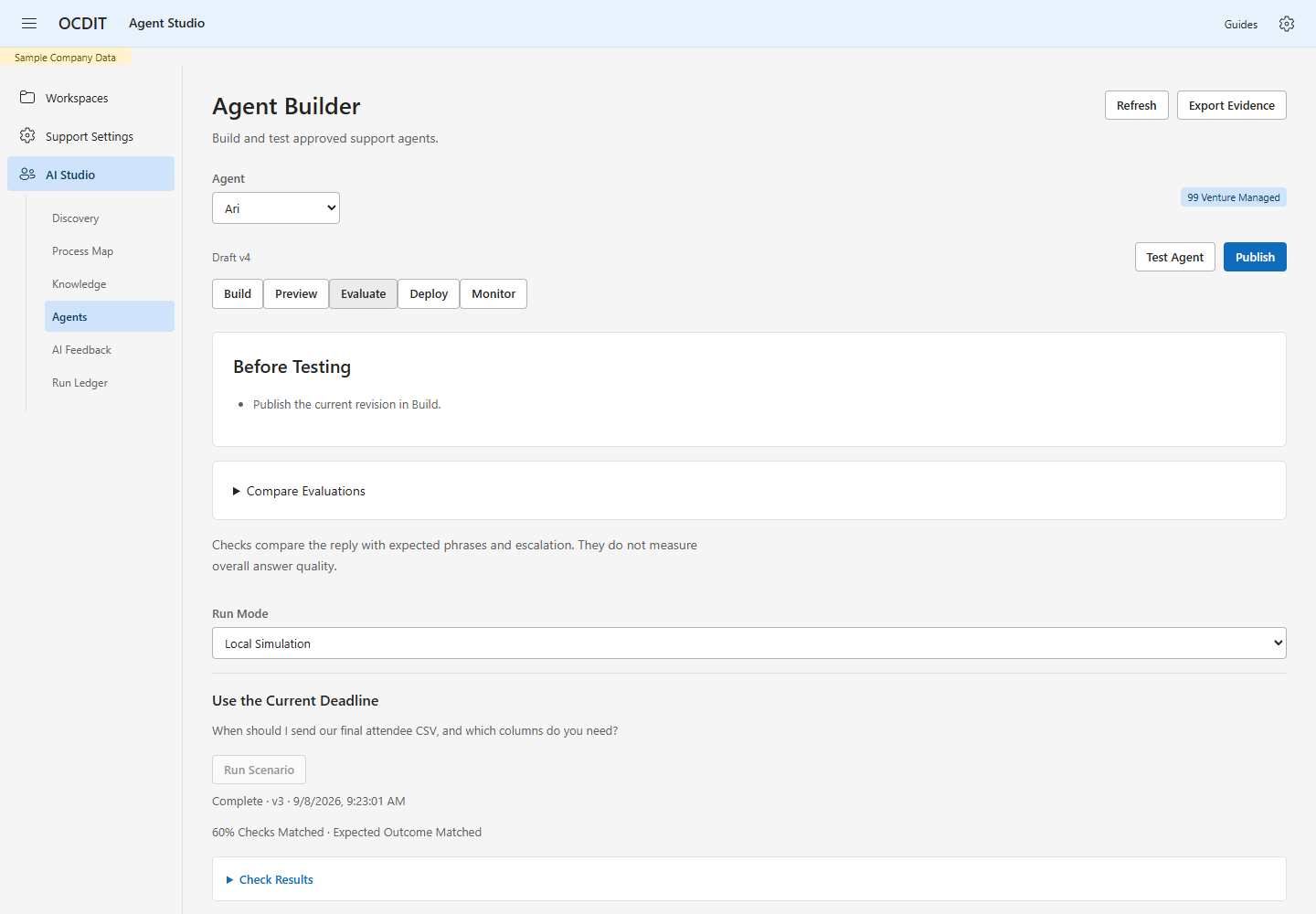
Checks Matched is the percentage of configured checks satisfied by that reply. Literal phrase matches and escalation checks are a small rehearsal aid, not a model-quality score or production acceptance gate.
Local Simulation makes no model request. Live Model · Uses Demo Budget uses the configured provider. Safety-boundary replies may be deterministic even when Model was requested; the recorded execution mode identifies what actually ran. No preview sends a message, changes a booking, issues a refund or operates equipment.
Product Catalogue and Booking Status read fabricated records from the pack. No inventory, payment, booking or Microsoft Graph service is connected. Unknown facts and commercial or operational changes require a human decision.
Test Unsaved Changes
- Edit the fields in Build.
- Open Preview and select Working Draft / Never Sendable.
- Enter Customer Enquiry, choose Run Mode, then Prepare Reply Draft.
- Read Draft Test Result and open View Trace. Back to Agent restores the selected agent, tab, enquiry and result.
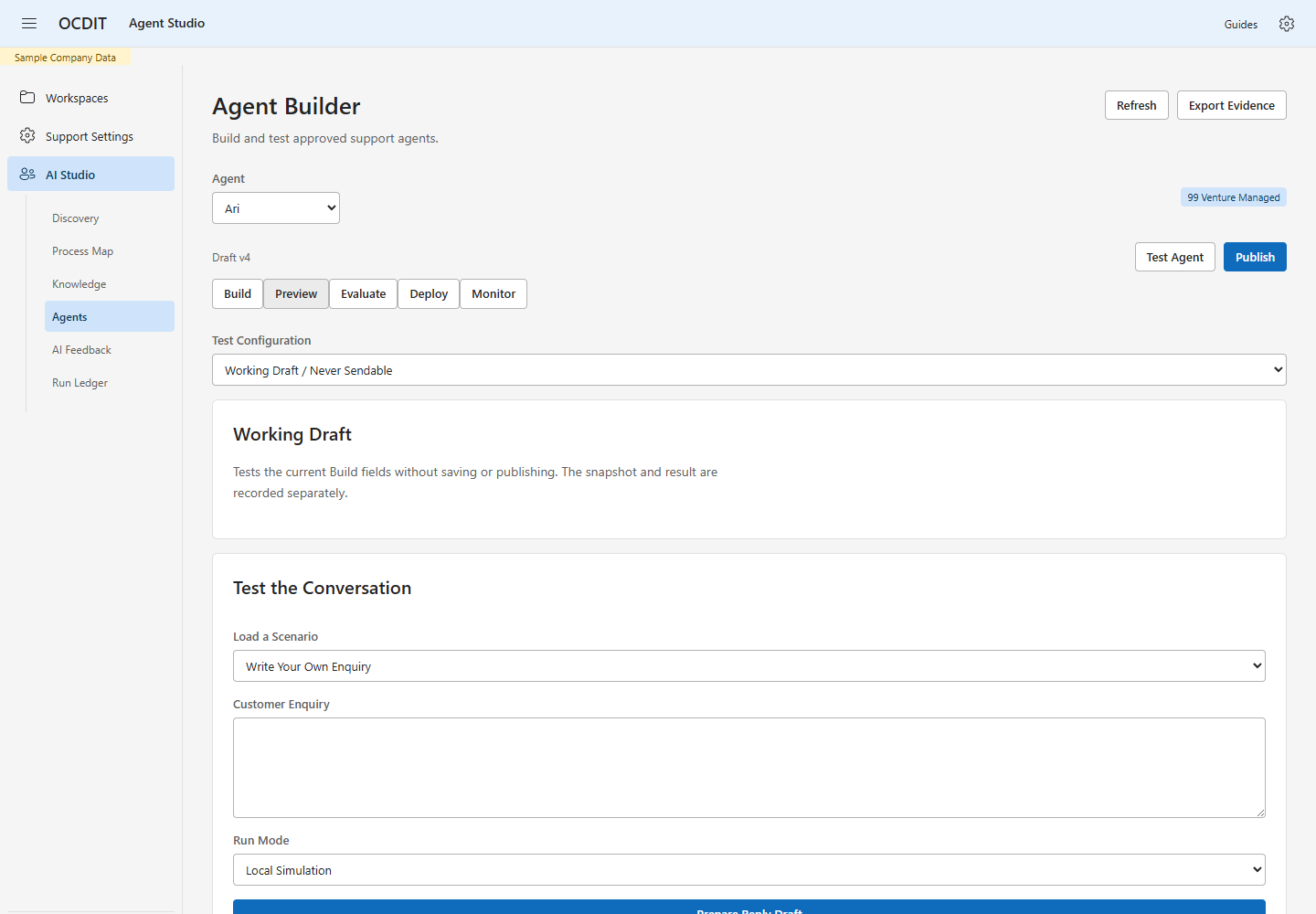
The test still requires current approved knowledge and process evidence. It records its own configuration snapshot without saving or publishing the agent. Its result can never be inserted or sent through the customer support flow, even after a later publication. Live-model tests use the same budget and uncertainty handling as other runs. Returning to the builder refreshes result eligibility against current evidence.
Compare Published Revisions
- In Evaluate, expand Compare Evaluations.
- Choose different Baseline Revision and Comparison Revision values.
- Select a result to open its trace; use Back to Agent to return.
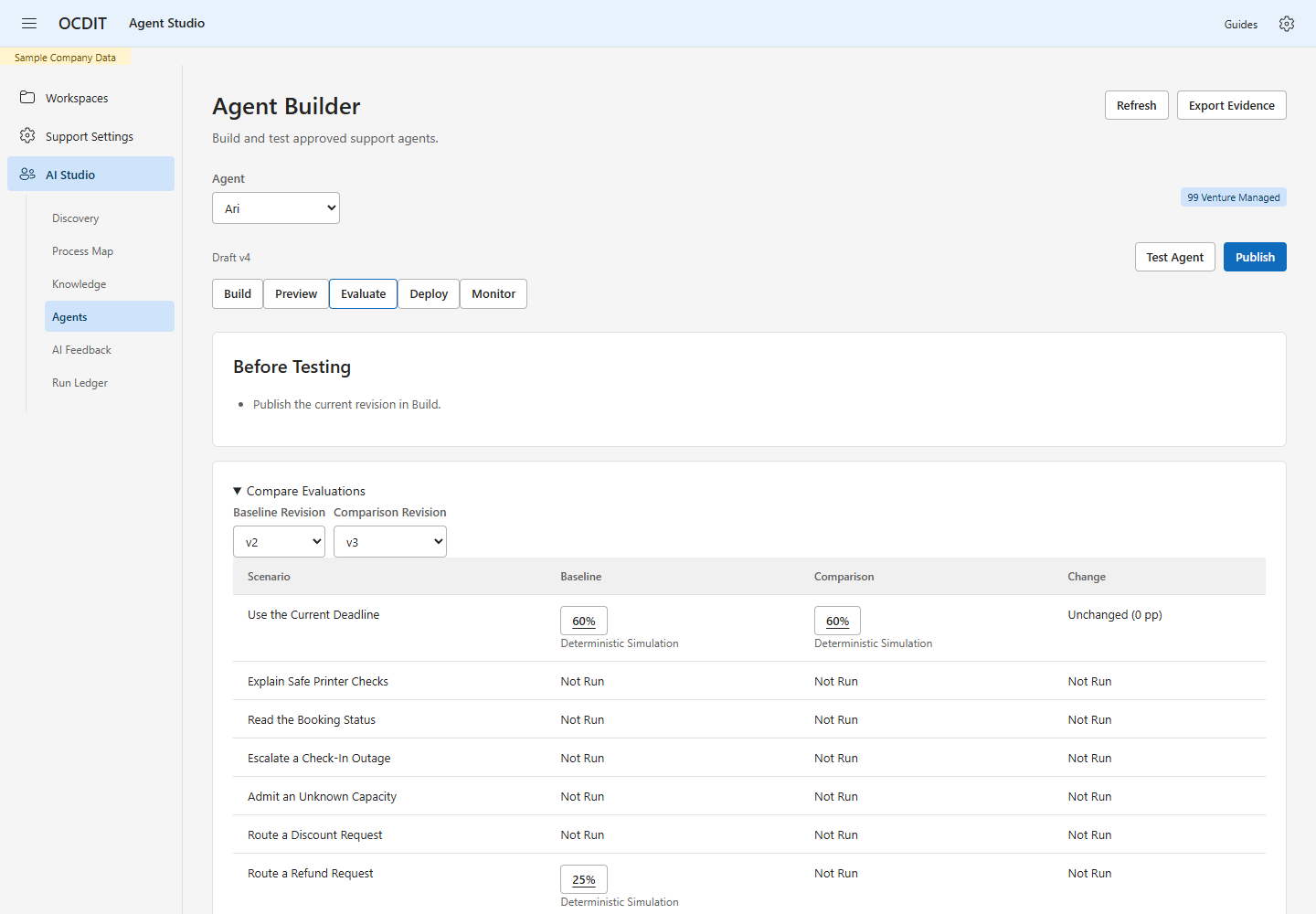
Each row uses the latest recorded attempt for that scenario and revision. Not Run means no attempt is recorded; Not Completed means the latest attempt has no completed checks. Neither is a failed quality score. No Baseline means there is no earlier result to compare. Different questions, checks, execution modes or models show Different Test Conditions, including changes to the current scenario. Improved, Regressed and Unchanged compare matched-check percentages, with the difference in percentage points; they do not establish overall model quality. Older incomplete records without scenario identity cannot be assigned to a row.
Use a Draft in Teams
When tenant AI is enabled, assigned staff choose Draft with AI beside the reply editor, select a published agent and choose Generate Draft. If they have typed text, Complete with AI uses it as the starting point. Use Draft inserts the result for review; sending remains an explicit human action. Manager guidance still requires a human Transfer action.
There is no support-ticket allowlist or per-ticket AI decision. The application checks tenant and feature policy, assignment/version, capture and history access, source/publication validity, provider configuration, stop state and available quota. Knowledge reuse decisions remain separate from tenant AI. Changed context requires a current draft. See the staff guide.
Stop or Withdraw
- In Agents → Monitor, enter Control Reason, then Pause All Agent Runs. Use Resume Agent Runs with a reason after resolving the issue.
- In Knowledge → Source Permissions, select a source and Blocked, enter Decision Reason, then Save Permission.
- Changed or blocked evidence invalidates affected knowledge, processes and agent use. Re-allowing a source does not restore old version-bound approvals; review current evidence and publish again.
A pause invalidates prior drafts, including after resuming. These controls cannot recall a message already dispatched to its channel. Historical evidence remains stored. An uncertain request is not automatically repeated; use Check Last Action or inspect the saved run before deciding what to do next.
Budget and Limits
Studio shows the deployment's model request and cost ceilings in its navigation. The demonstration uses high ceilings so normal rehearsals are not interrupted. New installations default to 100 model requests and a US$3 tracked budget until configured. US$0.016 is reserved before each call; recorded provider cost replaces that estimate when available. Uncertain outcomes retain their reservations.
Application limits, the workspace's daily AI limit and the provider's prepaid credit are separate. Raising an OCDIT limit does not top up provider credit. Use Model Token Quota below to inspect the current token allowance. See Client Rollout before enabling client billing.
Set a Model Token Quota
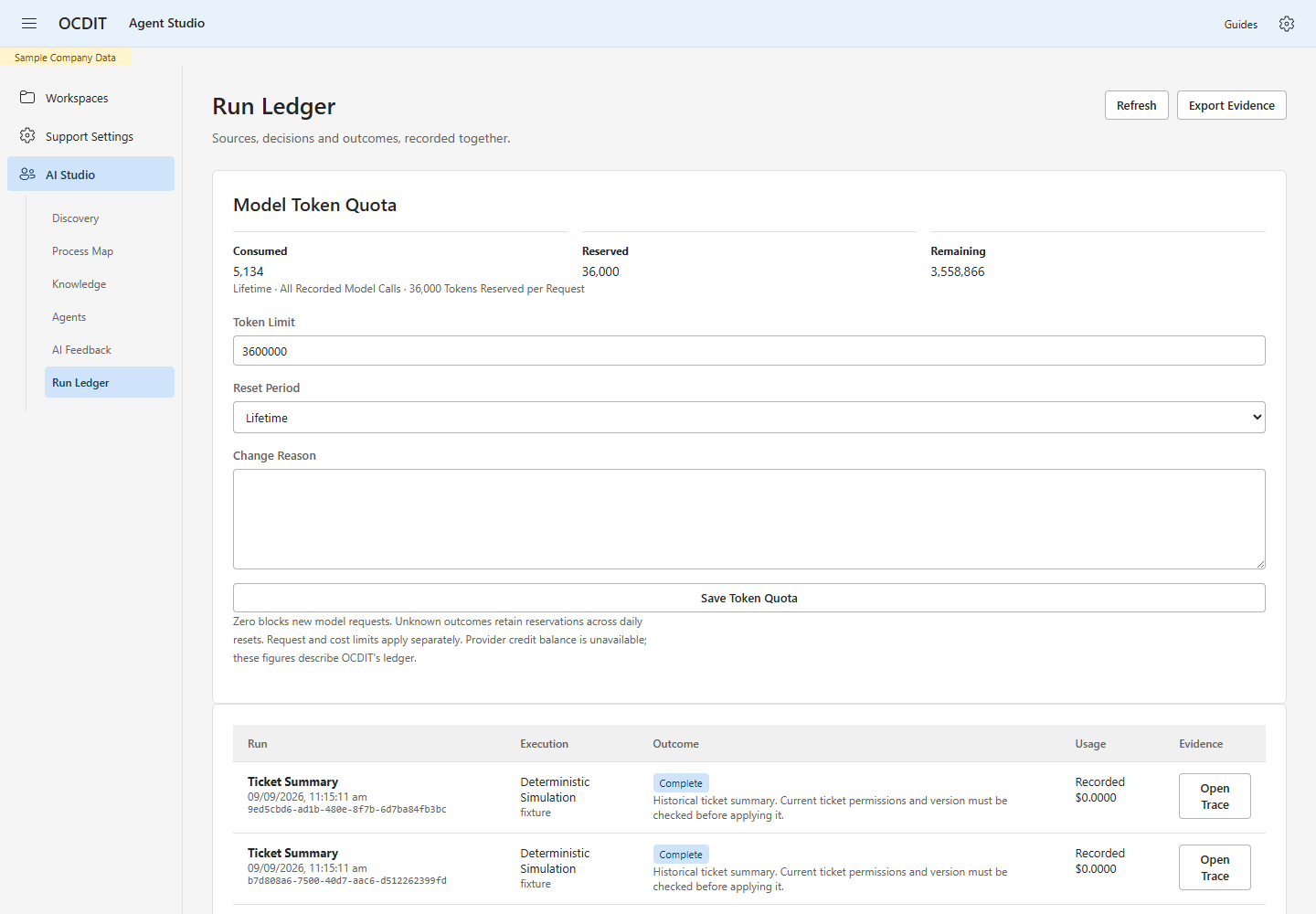
- Open Run Ledger → Model Token Quota.
- Read Consumed, Reserved and Remaining for the selected period.
- Set Token Limit and Reset Period: Lifetime or Daily · Singapore Time.
- Enter Change Reason, then choose Save Token Quota.
- Check the saved values and the Set Token Quota entry in Decision History.
Zero blocks new model requests. Each call reserves the amount shown before it starts; reported input/output tokens replace that reservation. Unknown outcomes keep their remaining reservation, including across daily resets. A limit below current consumed and reserved usage leaves zero available without erasing records. Request, token and cost limits are independent. The provider's credit balance is not available here; these totals describe OCDIT's recorded usage, not an API key balance. If a stale save is rejected, use Refresh, review the current values and re-enter your intended change. For a missing response, use Check Last Action.
The demo stores at most 50 sources and 200 runs. A disabled provider leaves simulation available. Configure provider credentials on the server; never put a key in an agent instruction, source pack, browser form, screenshot or evidence export.
Keep the Evidence
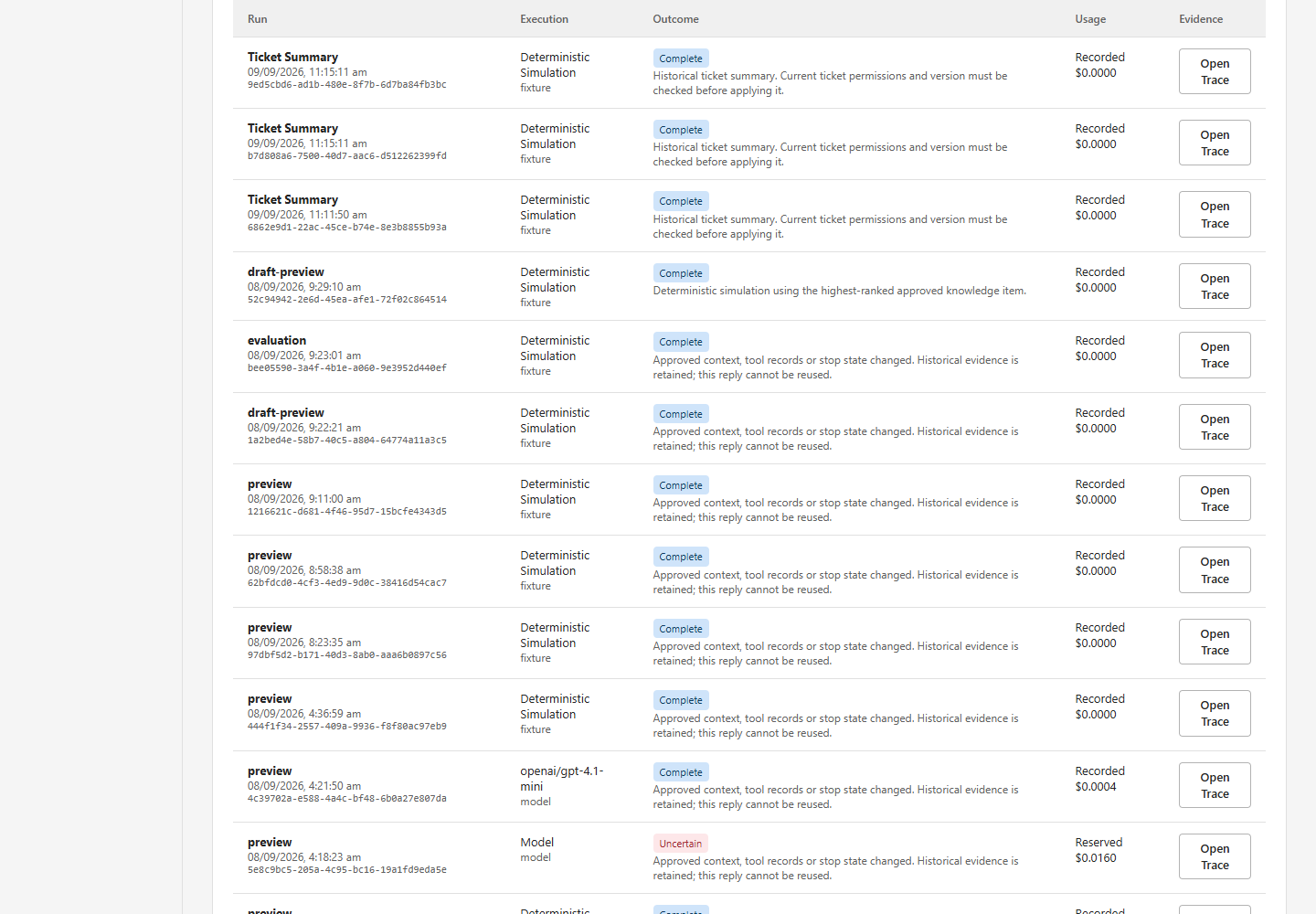
- Open Run Ledger to compare execution mode, outcome and recorded or reserved cost.
- Choose Open Trace for a run's saved flow.
Ticket Summary records show the captured transcript, recorded summary, close or transfer purpose, ticket version and evidence hash. Expand Captured Transcript to inspect each message and its author. These are historical internal drafts, not customer replies. Applying one requires a fresh ticket-access and version check; failed runs keep the manual-summary path available. 3. Review Decision History for the recorded action and reason. 4. Choose Export Evidence to download the JSON bookkeeping bundle.
The bundle includes sources, permission state, candidates, process versions, agent publications, runs, decisions and usage. Treat it as a data export: keep it in an approved location and apply your retention rules. It is not a database restore file or a certified compliance record. The separate Studio database and any copies need their own retention handling; support-case deletion does not erase Studio exports or fictional source packs automatically.
Support retention approval and deletion are blocked while Studio retains a related run or audit snapshot. There is no Studio deletion button in this demonstration. Have the deployment engineer complete the separately approved archive disposition, including retained event snapshots and controlled exports, before retrying the support retention review. Do not remove just the support link or a run row to declare the retained evidence erased.
Repeat the Local Rehearsal
Start the local demo server, then run:
node scripts/setup_studio_demo.mjs http://localhost:3020
Use the port of your local server. The script refuses live deployments and remote hosts. It imports the same pack, verifies current fictional policies, records demo approvals, publishes two personas and runs eight fixture evaluations. Stable request IDs make repeated runs reuse saved results. It does not override a rejected review, changed source permission or active agent stop, and it makes no paid model requests. An uncertain run requires inspection instead of automatic replacement.
Production source connectors, Graph permissions, customer-specific model policy, real staff acceptance and autonomous tool execution are outside this demonstration.
Data Flow
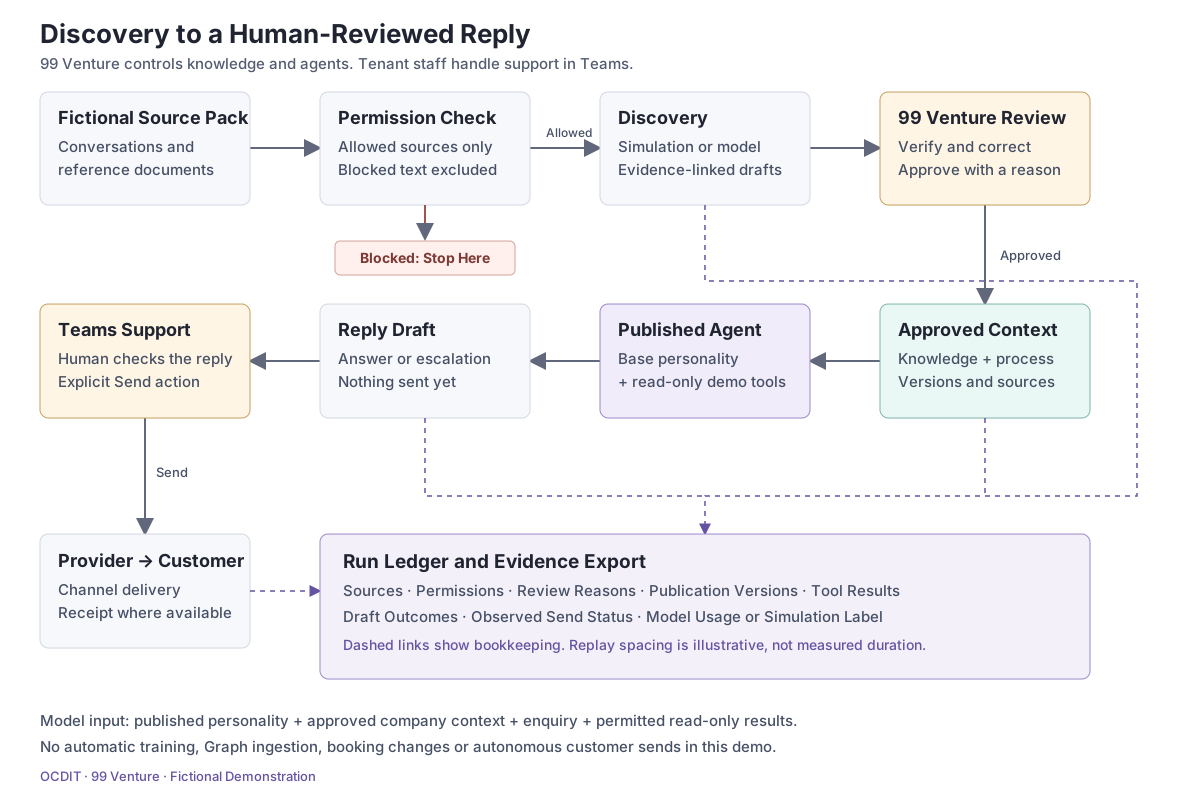
Solid arrows show the data path; dashed arrows show recorded evidence. Blocked sources stop before discovery. The published persona uses approved company context and read-only demo tools; the tenant employee reviews and explicitly sends the reply. The ledger stores observable steps and outcomes, not private model reasoning.
Read the Connection and Data Labels
Sample Company Data describes the invented company records used for the presentation. Model Connected means the model provider is configured. Each run separately records whether it used a real model or a deterministic simulation; delivery outcomes record the actual messaging result.