Staff Guide
Updated 9 September 2026
Support Workflow Release · 9 September 2026: Simplified menus and tenant-wide AI are deployed. Screenshots use fictional local data.
Use OCDIT in Microsoft Teams for WhatsApp, LINE and WeChat enquiries. Screenshots show the local application with fictional training data. The staff selector and preview banner are simulator controls; live Teams uses your work identity.
LINE Group Conversations
When group invitations are enabled, a LINE group opens one ticket for all its members. Messages show a member identifier, or Identity Unavailable if LINE does not supply one. LINE Group Reply · All Members means your reply will be visible to everyone in that group. Internal Note · Team Only stays with support staff.
Pick up, transfer and resolve the ticket normally. A message after resolution opens a new ticket. Past Conversations and individual Customer Profile linking are not available for group tickets. Private chats remain separate.
Start Your Shift
WhatsApp group tickets require an eligible business number and business-created invite-link groups; the current test number is not eligible. If enabled for your workspace, WhatsApp Group Reply · All Members sends to the whole group. A group's Sent status does not mean every participant has read the message. WeChat group tickets are not available through the current Official Account connector.
- Open Teams → OCDIT → Inbox.
- Confirm your name and availability at the top. A connection warning appears if the Inbox loses contact.
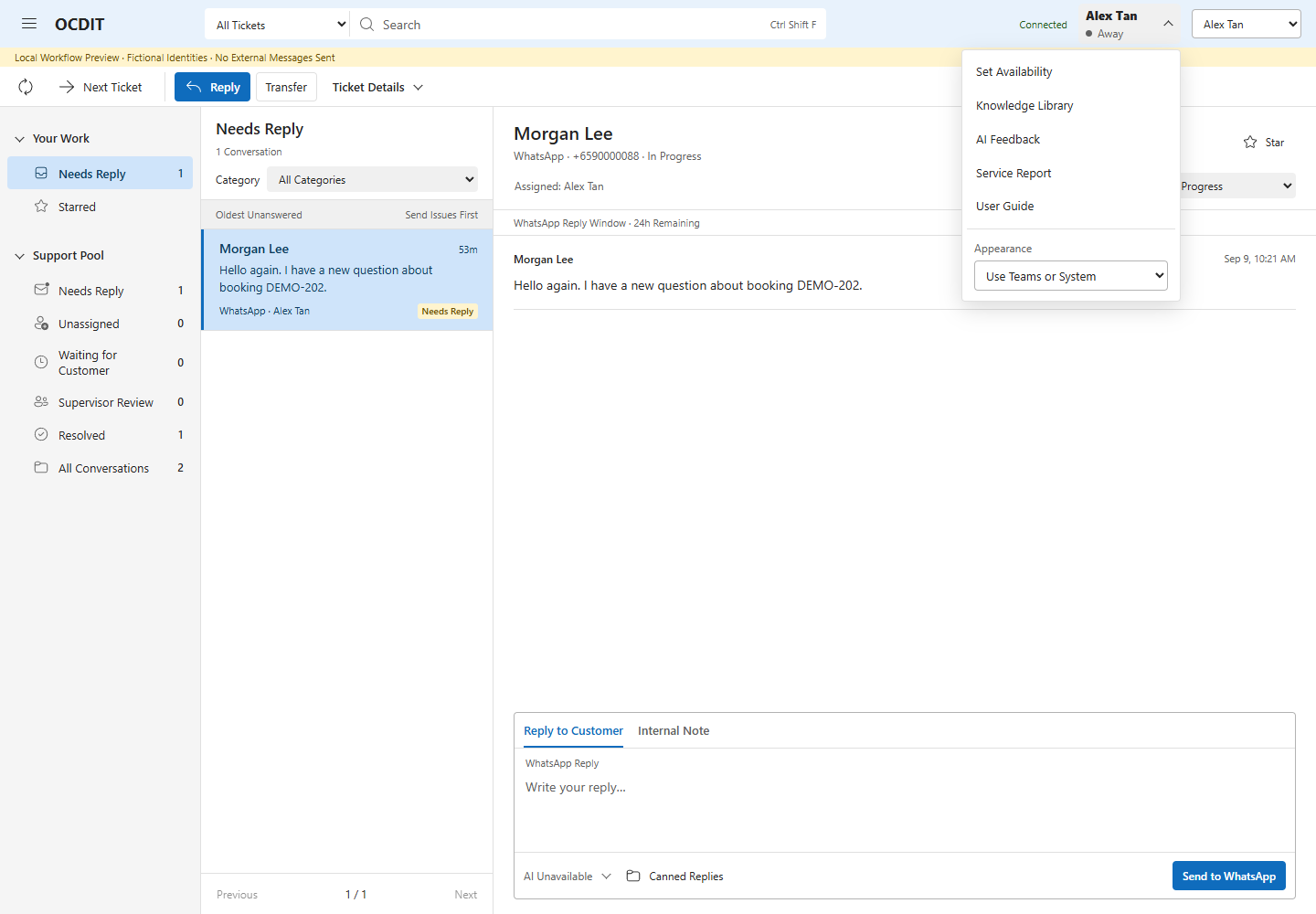
- Open your name menu → Set Availability, choose Available and your capacity. Availability lasts eight hours; save again when starting a new shift.
- Check Your Work → My Needs Reply, then Support Pool → Unassigned.
- If the application needs updating, finish or preserve your drafts, then use the Teams app menu → Reload App. Refresh reloads queue data only.
Your name menu also contains Knowledge Library, AI Feedback, Service Report and User Guide.
Drafts stay in the current page session. They do not follow you to another device or survive a reload.
Find Work
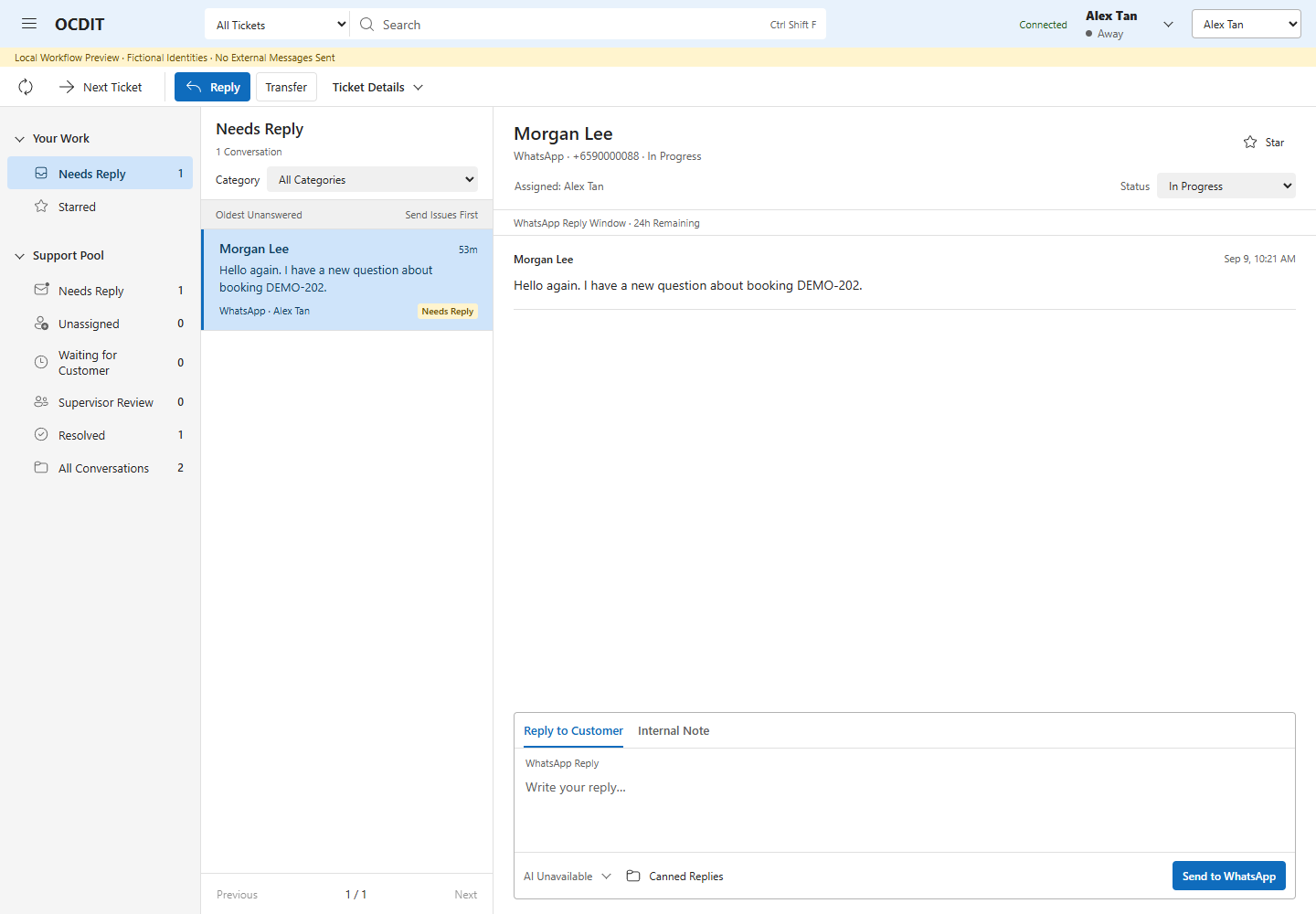
Your Work groups your personal views. Support Pool includes your tickets and unassigned work; supervisors can oversee the wider pool. Section headings are labels; choose an indented view below them to open its queue. Select a group heading to collapse or expand it. Toggle Folders hides or shows the navigation; on narrow screens it opens a temporary folder panel.
| View | What It Shows |
|---|---|
| Your Work → My Needs Reply | Tickets assigned to you that need attention, including send issues. |
| Support Pool → All Needs Reply | Unanswered tickets you can access: your own and unassigned work. Supervisors see the wider pool. |
| In Progress | Accessible tickets currently being handled. |
| Starred | Tickets you have starred; stars do not grant access. |
| Unassigned | Enquiries waiting for staff to pick them up. |
| Waiting for Customer | Tickets waiting for requested information. |
| Supervisor Review | Earlier tickets still awaiting a supervisor decision. |
| Resolved | Closed-ticket entries; reading their content requires the applicable access. |
| All Conversations | Tickets across statuses. |
Send issues appear first, then the oldest unanswered work. Unread belongs to you; Needs Reply is shared. Reading a message does not mark it answered.
Use Search at the top for a name, channel identity, message, note or tag. All Tickets searches tickets you can currently read. Choose Current View to search only the selected folder. Restricted past tickets do not appear in search until you have the required customer permission. Press Ctrl+Shift+F (or Command+Shift+F on Mac) to focus Search. Clear Search, Escape in Search, or choosing a folder ends the search. Previous and Next move through 30-ticket pages.
Choose Your Appearance
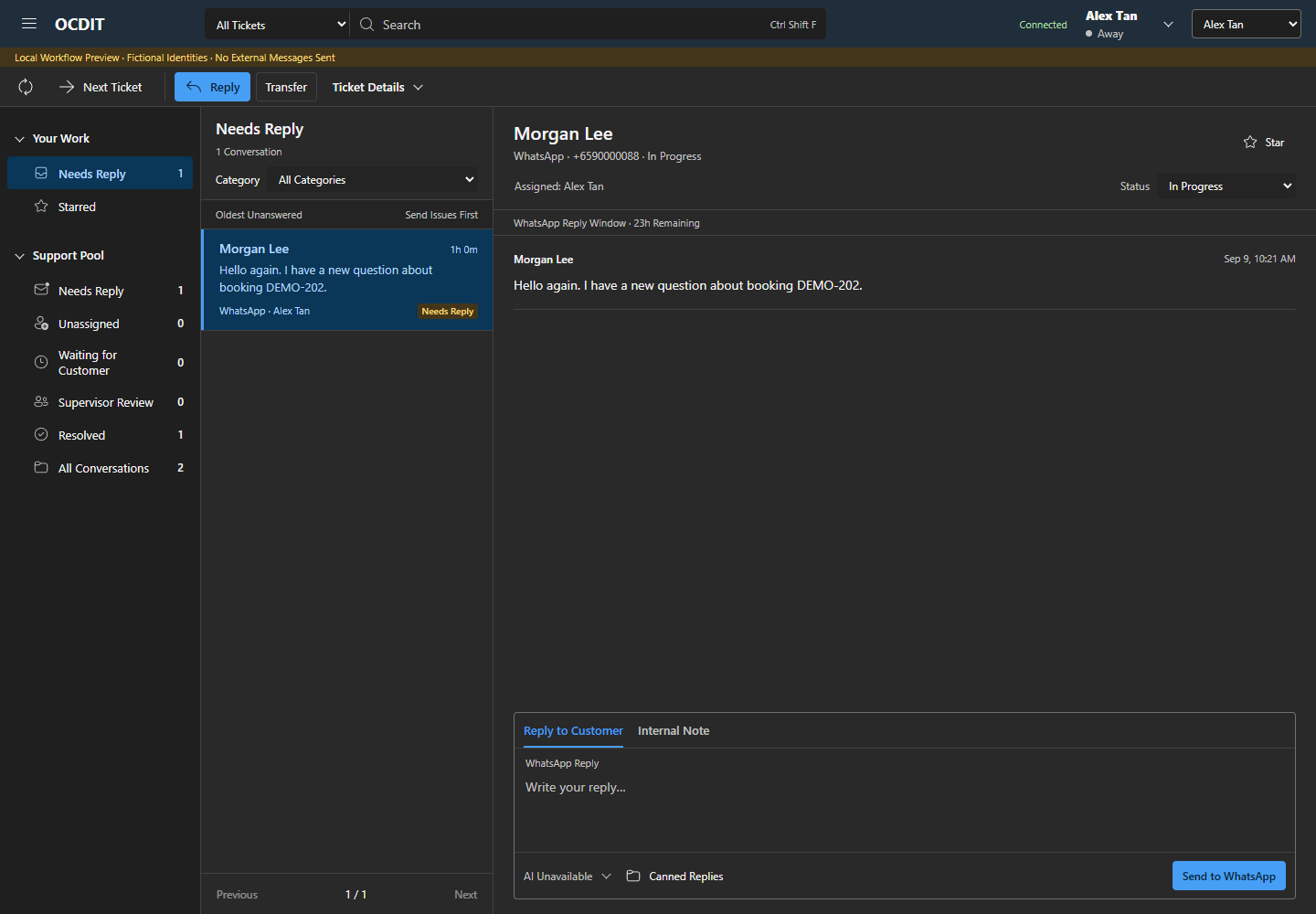
Open your name menu → Appearance. Choose Use Teams or System, Light, Dark or High Contrast. The default follows Teams; outside Teams it follows the operating system. Your choice is saved for this app in this browser. Changing appearance keeps your current draft.
An inbound message after resolution creates a new ticket. A transfer also creates a successor ticket for the receiving staff. Closed tickets remain records; do not try to reopen them with Status.
Pick Up and Reply
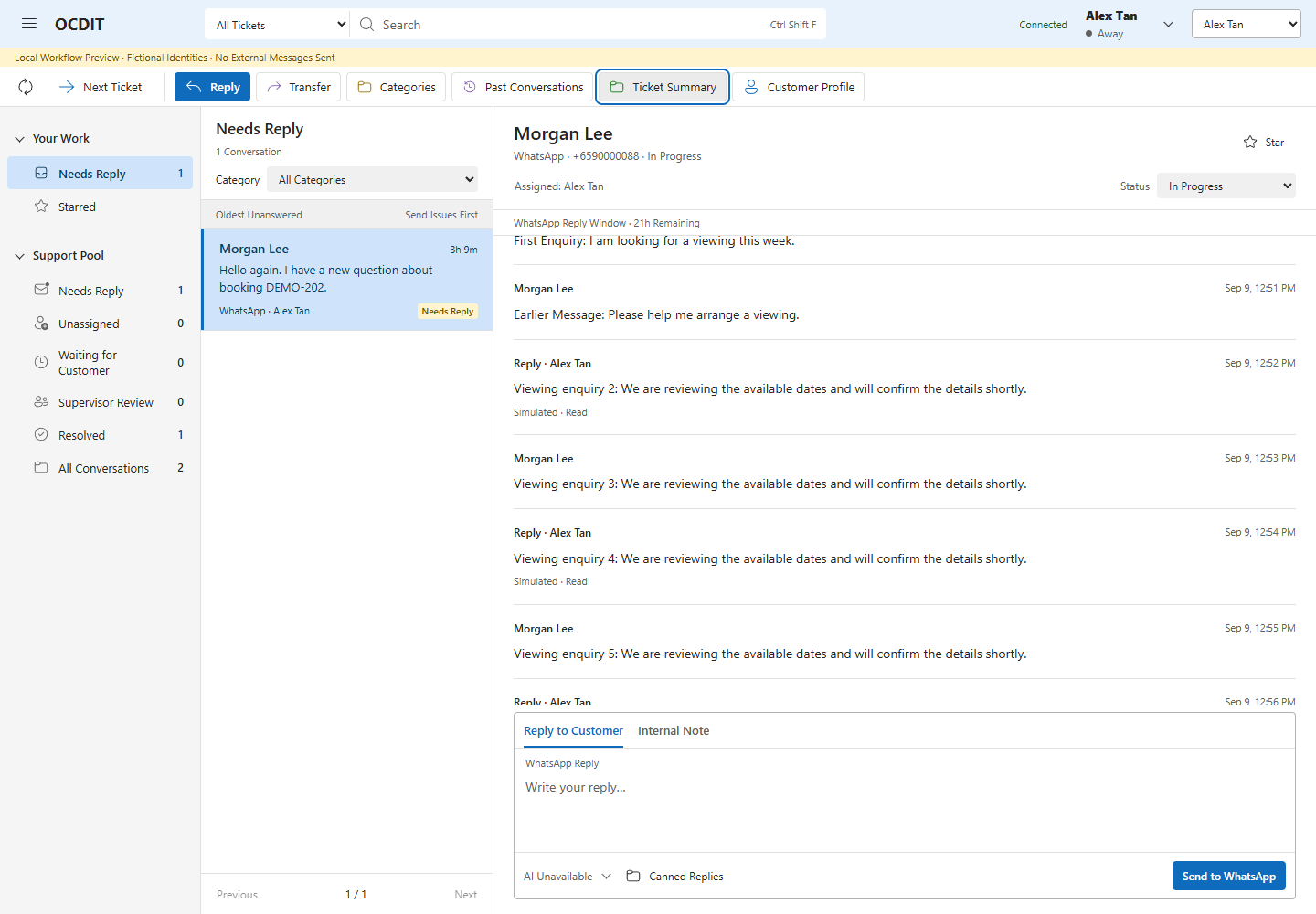
On desktop and tablet, the command bar exposes Reply, Transfer, Categories, Past Conversations, Ticket Summary and Customer Profile with icons and labels. Supervisor Actions stays grouped. On a phone, these tools, assignment and Status are in Ticket Actions.
- Open an Unassigned enquiry. Select Pick Up below the messages; the reply editor opens after pickup succeeds.
- Check that your name appears under Assigned.
- Read the current interaction and Ticket Summary.
- Select Reply to Customer, check the destination, and write your reply.
- Select the channel's Send button once. Enter or Ctrl+Enter sends; Shift+Enter adds a line break.
- Watch the message's delivery status.
Send and View Images
For an active WhatsApp ticket, select Attach Image in the reply editor and choose a JPEG or PNG up to 5 MB. Check the preview, add an optional caption, then select Send to WhatsApp. Remove Image removes it from your draft. One image can be attached per reply; signatures count toward the 1,024-character caption limit.
Select View Image on a message to open its attachment. Past-ticket images require the same customer permission as the transcript. Images become part of the ticket's retention record. An incoming image that has not yet been opened may become unavailable when WhatsApp no longer retains it.
This release supports WhatsApp images. LINE and WeChat image attachments are not yet supported. AI reads captions and exchanged text; it does not inspect image contents.
Assigned staff share the ticket. Any assigned member can reply, so coordinate before sending. To change membership without closing the ticket, select Assigned, check the receiving staff, then Save Assignment. Use Transfer for a reviewed change of responsibility with a new ticket.
Only assigned staff and supervisors can read an assigned active ticket. Unassigned tickets are available for pickup. Shared assignees can work together. These rules also apply to search, ticket links and customer profiles. Past conversations still require customer permission.
Next Ticket in the command bar opens another assigned ticket. It does not pick up unassigned work. Reply focuses the customer reply composer. While reading older messages, use View New Messages when ready.
Stars, Categories and Canned Replies
- Select Star on a ticket and use Starred to find it again.
- Open Categories, select one or more rows and Save. Use the queue Category filter to narrow your work. Category names are managed by 99 Venture in Administration > Support Settings > Categories and Canned Replies.
- Choose Canned Replies, search/select a reply, fill any required fields and choose Insert into Draft. Review the full message before sending.
- Sign Reply controls an optional signature. Required signatures cannot be turned off. The preview shows its placement and wording.
Add an Internal Note
- Choose Internal Note and check the amber composer.
- Write the context → Add Internal Note.
- Switch to Reply to Customer before your next customer response.
Notes are shared internal records, not private messages. They are not sent to the customer or copied into new Teams channel cards. Keep passwords, payment details and unnecessary sensitive data out of notes.
Use the Inbox on Your Phone
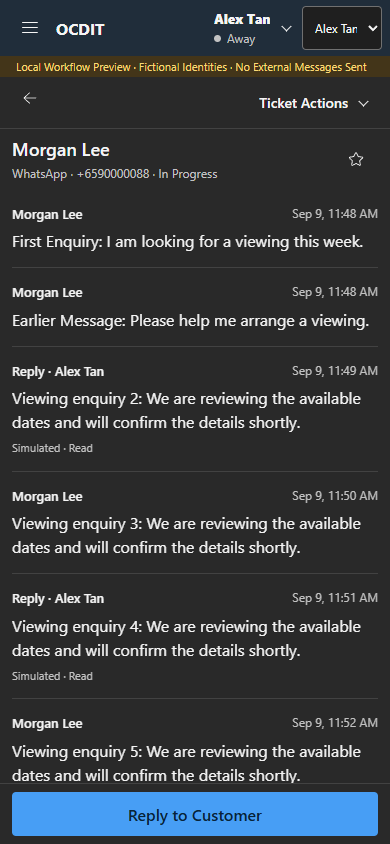
- Choose a ticket. Swipe within the conversation to read earlier messages. The customer heading, Back arrow and reply bar stay in place.
- Tap Load Earlier Messages at the top to retrieve older parts of the current interaction. View New Messages takes you to a new reply without losing your place while you read.
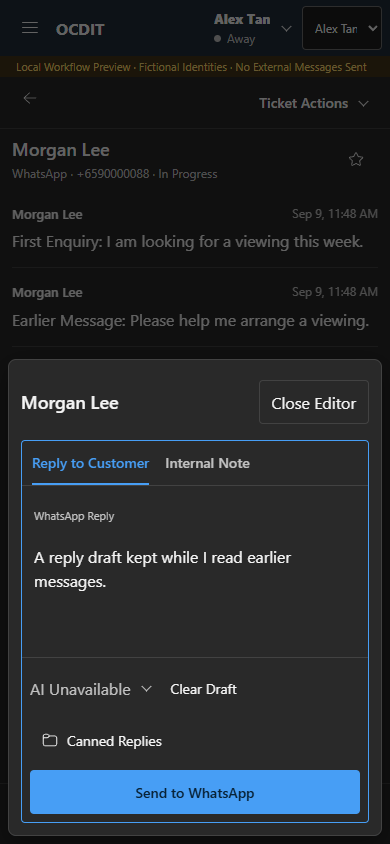
- Tap Reply to Customer at the bottom to open the editor. AI tools, canned replies and the Internal Note tab are inside it.
- Close Editor returns to the transcript and keeps your draft. Tap Continue Draft to resume. Sending returns you to the conversation; check the delivery status there.
- Use Ticket Actions for Transfer, Assigned, Status, customer details and permitted supervisor tools. Tap the star beside the customer's name to save the ticket in Starred.
- Use the Back arrow to return to the list and Search. Toggle Folders opens the folder panel; choose a folder or tap outside to close it.
Drafts stay in this page session, including when you rotate the screen. Close Editor does not send or discard a draft. A page reload still clears unsent drafts.
Review Past Conversations
- On the active ticket, select Past Conversations.
- If earlier conversations exist, choose Send Permission Request. This sends an actual request to the customer naming the assigned staff.
- Ask the customer to reply YES or NO in their messaging channel. Any capitalization is accepted (for example, yes or Yes); extra text or whitespace is not.
- Select Refresh. Continue only when Permission Granted appears.
- Select View Conversation beside an available record. Previous content is read-only.
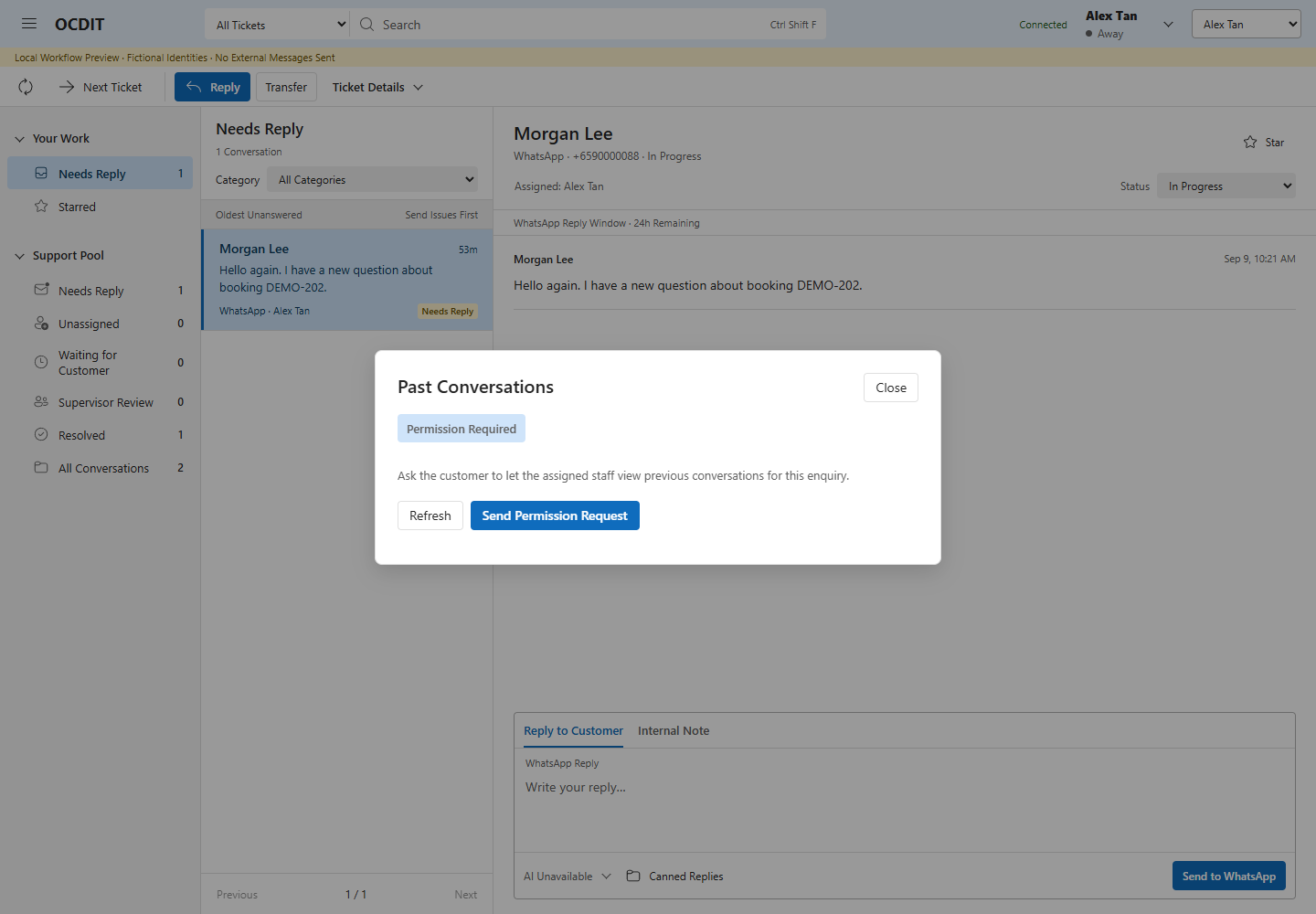
Permission applies to the named assigned staff and expires at the displayed time. Assignment changes invalidate the previous grant. Withdraw Access removes it. Do not treat an unrelated affirmative message, a customer profile link or supervisor status as permission.
Request Queued is not consent. If delivery is unconfirmed, check with the customer before requesting again. After a missing API response, use Check Last Request to confirm the same action. Do not send a duplicate request.
The current transfer chain is continuity for the same interaction; unrelated closed conversations remain behind the permission check. Teams cards and bot history commands direct staff to the authenticated Inbox instead of posting transcripts in the channel.
Transfer a Ticket
- Select Transfer.
- Choose Reason: customer requests a manager, specialist support, shift change, follow-up, or other.
- Use Find Staff and check each receiving staff member. Searching keeps earlier selections.
- Add Notes with outstanding work and customer commitments.
- When AI is available, the summary is prepared automatically. Review and edit it. Otherwise write the summary and select Use Manual Summary.
- Select Transfer once. Assigned recipients and supervisors can open the successor; other senders return to the queue.
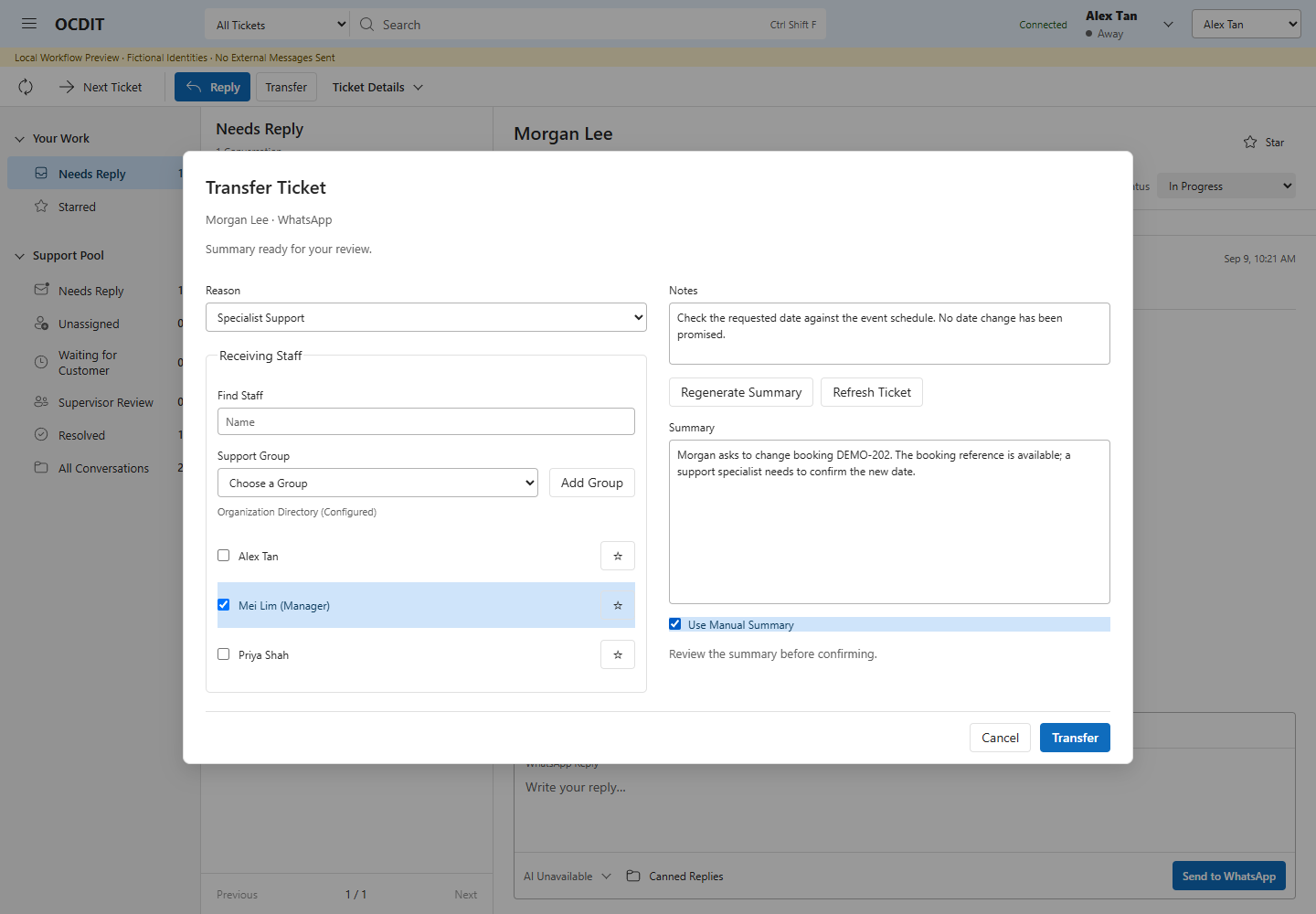
Transfer closes the original ticket and assigns the successor to the selected staff. It does not send the summary to the customer. Cancel makes no transfer. Manager requests use this same flow; select the appropriate enabled manager.
If the ticket or summary changed, use Refresh Ticket, review the retained text, then generate again or explicitly choose Use Manual Summary. Check Last Action confirms an uncertain request without creating another transfer.
Wait or Resolve
Choose Status → Waiting for Customer while awaiting requested information. Choose In Progress when work resumes. Status changes do not send messages.
To finish:
- Choose Status → Resolved.
- Add any useful Notes.
- Review the automatically prepared summary if available, or write one and select Use Manual Summary.
- Optionally select Nominate for Case Study.
- Select Resolve once.
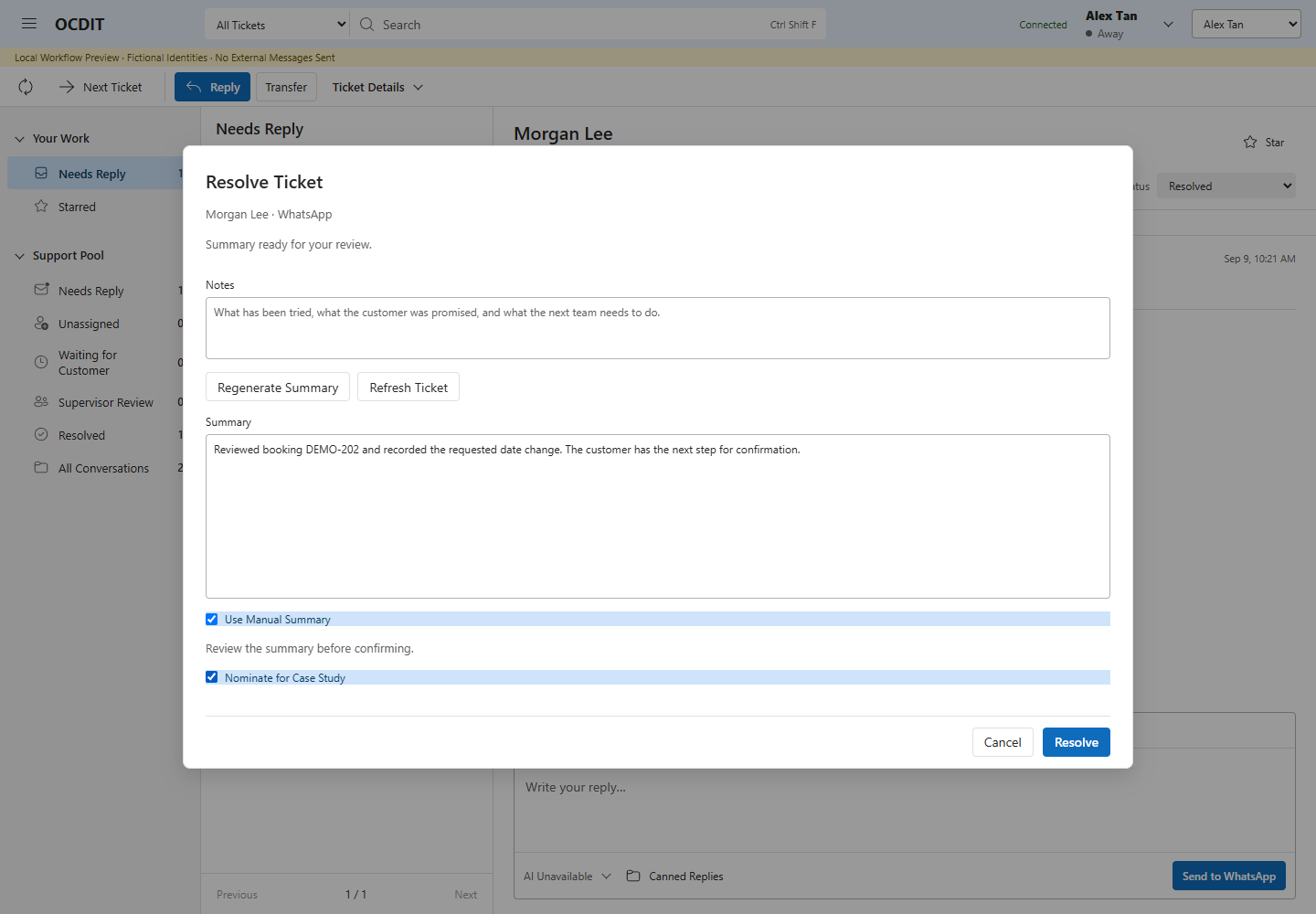
Resolution preserves a closed record. A later customer message starts a new ticket. Nomination records a suggestion for central review; it does not publish knowledge or authorize AI training.
Send or clear any unsent draft before opening Resolve or Transfer. Queued or sending replies can block completion. An uncertain delivery must be reconciled; resolving or transferring never resends it.
Use Supervisor Actions
Configured supervisors see the amber Supervisor Actions menu on active tickets.
- Activity History: Inspect the ticket’s recorded actions.
- Knowledge Permissions: Review knowledge reuse decisions; this does not control tenant AI.
- Recovery: Find and select the assigned staff, enter required Notes, then Save Assignment. This changes membership on the same ticket.
- Record Decision: For an earlier escalated ticket assigned to you, record the decision in Notes, then Return to In Progress.
An earlier escalated ticket can be recovered only to supervisors until its decision is recorded. Closed tickets cannot be recovered or reopened. A manager display name alone grants no supervisor access. See Supervisor Recovery.
Keep Useful Context
Open Ticket Summary to update the continuity summary, intent, outcome and process. Use factual commitments and next steps. Nominate as a Knowledge Candidate records a suggestion only. If saving conflicts with another change, choose Review Latest Context before trying again.
Use Customer Profile to record facts with evidence. Check Verified/Unverified labels. A matching name does not prove identity; linking needs an explicit identity check. Editing a verified fact removes its verification. Profile links neither merge channels nor bypass history permission. See Customer Profiles.
Use Approved Knowledge
- Open your name menu → Knowledge Library while viewing your assigned ticket.
- Review an answer under Approved Answers and its review date.
- Choose Insert into Reply Draft.
- Review the complete message, then explicitly send it.
99 Venture manages publication, sources and approval. Expired, changed or withdrawn knowledge can block a linked draft. Clear it and choose a current answer; do not strip its reference to bypass a block.
Draft with AI
- From Reply to Customer, choose Draft with AI beside the reply editor.
- Select an available Agent → Generate Draft. If you already typed a reply, choose Complete with AI → Complete Reply instead; the suggestion takes your text into account.
- Review the answer and any human-review guidance.
- Clear an existing reply draft if needed, then choose Use Draft.
- Review the inserted reply and select the channel's Send button.
Generating and inserting send nothing. If a reply calls for a manager, use Transfer yourself. Demonstration tools cannot issue refunds or make real bookings.
Editing an inserted agent reply retains its reference and blocks Send until its exact wording is restored. Clear Draft deliberately discards it so you can write a new human reply. Do not copy blocked wording into a new draft to bypass its checks.
Check Last Request retrieves an uncertain generation request; Refresh Drafts reloads saved results. If unavailable, continue manually or ask 99 Venture. AI is enabled or disabled for the tenant by 99 Venture. There is no ticket-level AI permission or approved-ticket list. Feature controls, capture rules, history access, provider configuration, publication, stop state and usage limits still apply. When tenant AI is off, its controls are hidden. When AI is enabled but unavailable in the current context, choose AI Unavailable beside the editor to see the reason.
Understand Delivery
| Status | What to Do |
|---|---|
| Queued / Sending | Wait. Do not send another copy. |
| Accepted | The provider accepted the API request. LINE and WeChat provide no delivery/read receipt here. |
| Sent / Delivered / Read | WhatsApp receipt information when available. |
| Failed | Ask the administrator to check the definite failure before preparing another reply. |
| Uncertain | The message may have arrived. Ask for reconciliation before resending. |
The current implementation limits WhatsApp free-text replies to 24 hours after inbound, LINE replies to a conservative seven-day test window, and WeChat sandbox replies to 48 hours with five attempts per rolling 48 hours and 2,000 UTF-8 bytes. Failed and uncertain WeChat attempts count. The general composer limit is 4,000 characters. Provider eligibility and quotas can impose further limits.
Finish Your Shift
- Check Your Work → Needs Reply and send issues.
- Update context, transfer unfinished work, or resolve completed tickets.
- Open your name menu → Service Report for the queue and selected-period activity.
- Finish or preserve drafts before closing Teams; drafts do not transfer with the ticket.
Open your name menu → AI Feedback → New Feedback with a ticket selected to explain what an agent should learn so you do not keep repeating the same guidance. Select a supporting source message and Submit for Review. Read accessible submissions and decisions in that same dialog; 99 Venture manages improvement review in Studio. A case-study nomination appears in the central review sources. Neither action changes an agent or publishes knowledge automatically. See AI Feedback.
Handle a Problem
| Problem | Next Step |
|---|---|
| Connection lost | Preserve the draft, check connectivity and Refresh. |
| Check Last Action / Request | Confirm the original request; do not create another copy. |
| Ticket or assignment changed | Refresh, read the latest state and coordinate with assigned staff. |
| Send disabled | Check assignment, closed state, reply window, provenance and pending actions. |
| Previous content unavailable | Check history permission; a supervisor role is not a bypass. |
| Sign-in failed | Open OCDIT within Teams using your enabled account; ask your administrator if it persists. |
Share the time, channel, ticket reference and exact error with your administrator. Do not share credentials or unnecessary customer history.
On small screens, open a ticket from the list and use Back to Inbox to return. Dialogs scroll when needed. The Inbox is the work queue; Teams alerts are best-effort links and can be muted. New channel cards carry metadata and Open in Inbox, not message text or reply forms. Ordinary channel messages are never forwarded to customers.
Personal Settings
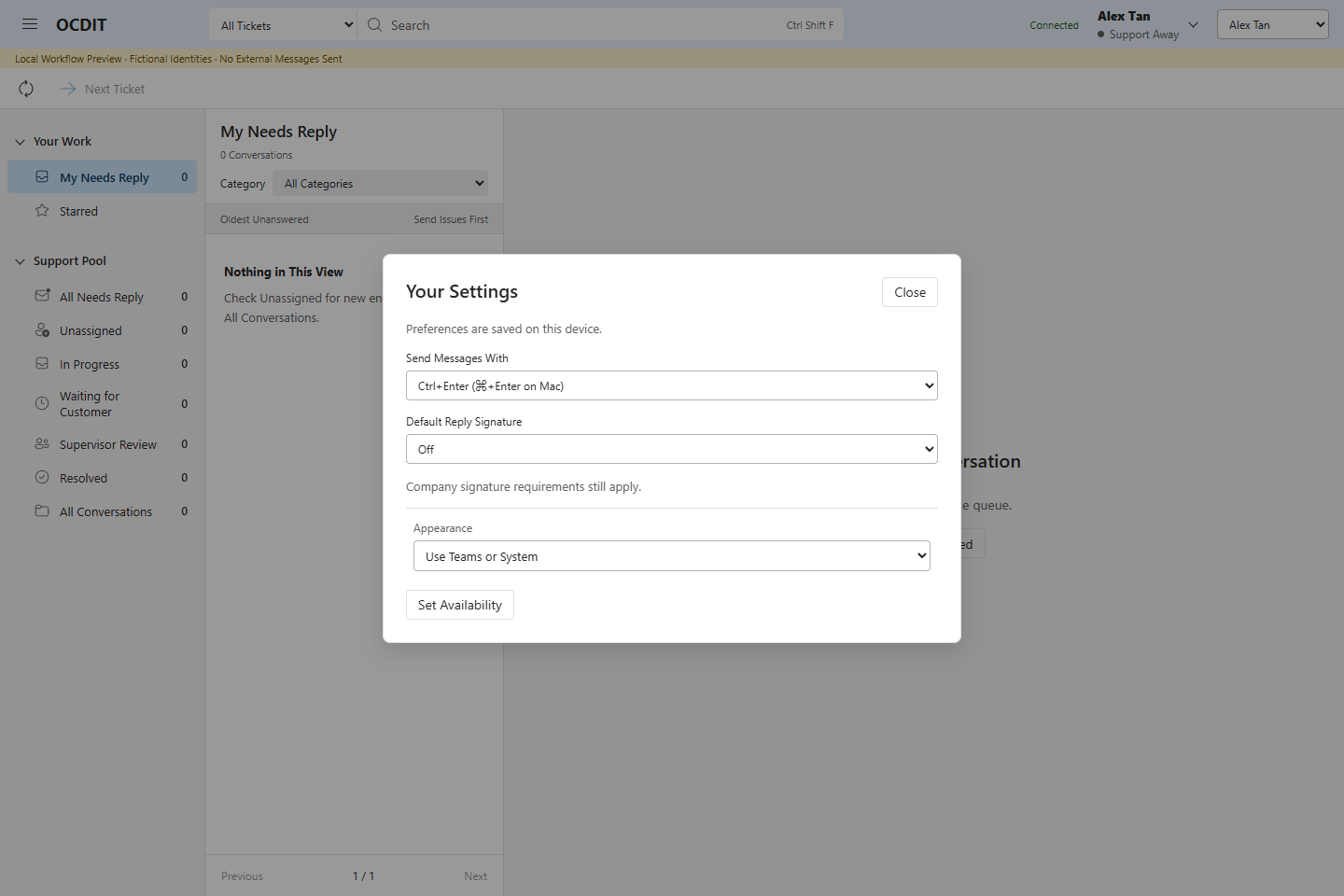
Open your account menu and select Settings to choose appearance, Enter or Ctrl+Enter sending, and your default optional reply signature. Preferences are saved on this device. Company signature requirements override personal preferences. Set Availability controls support routing; it does not change your Teams presence.
Finding and Drafting Work
In Progress lists accessible tickets with that status. My Needs Reply counts your assigned work; All Needs Reply also includes unassigned tickets, so the counts can differ.
In Draft with AI, use Instructions (Optional) to guide tone or request a clarification. Instructions do not override approved company policies or authorize unsupported promises. Review the generated reply before sending.