Administrator Operations
Updated 9 September 2026
Use this after the Administrator Setup Guide. Commands below assume the isolated native layout in Native Deployment; replace paths only after checking the actual deployment. They are for the administrator or authorized agent, not support staff.
Before a Rehearsal
- Confirm the correct tenant, host, test users and channel accounts in the private asset register.
- Check Teams license/trial validity, Microsoft secret expiry, Meta token expiry, LINE allowance and WeChat test eligibility. Do not rotate healthy credentials just to rediscover them.
- Check
systemctl is-active ocdit.serviceandcurl --fail https://HOSTNAME/healthz. Expectstatus: okandmode: live. - Open Teams → OCDIT → Inbox with the enabled employee. Confirm their identity and the expected cases.
- Open your name menu → Service Report. Investigate outstanding/uncertain jobs rather than clearing them.
- Ask the tester for one fictional enquiry on each channel being demonstrated. Confirm the reply on the phone and the same-case follow-up. Health alone does not prove delivery.
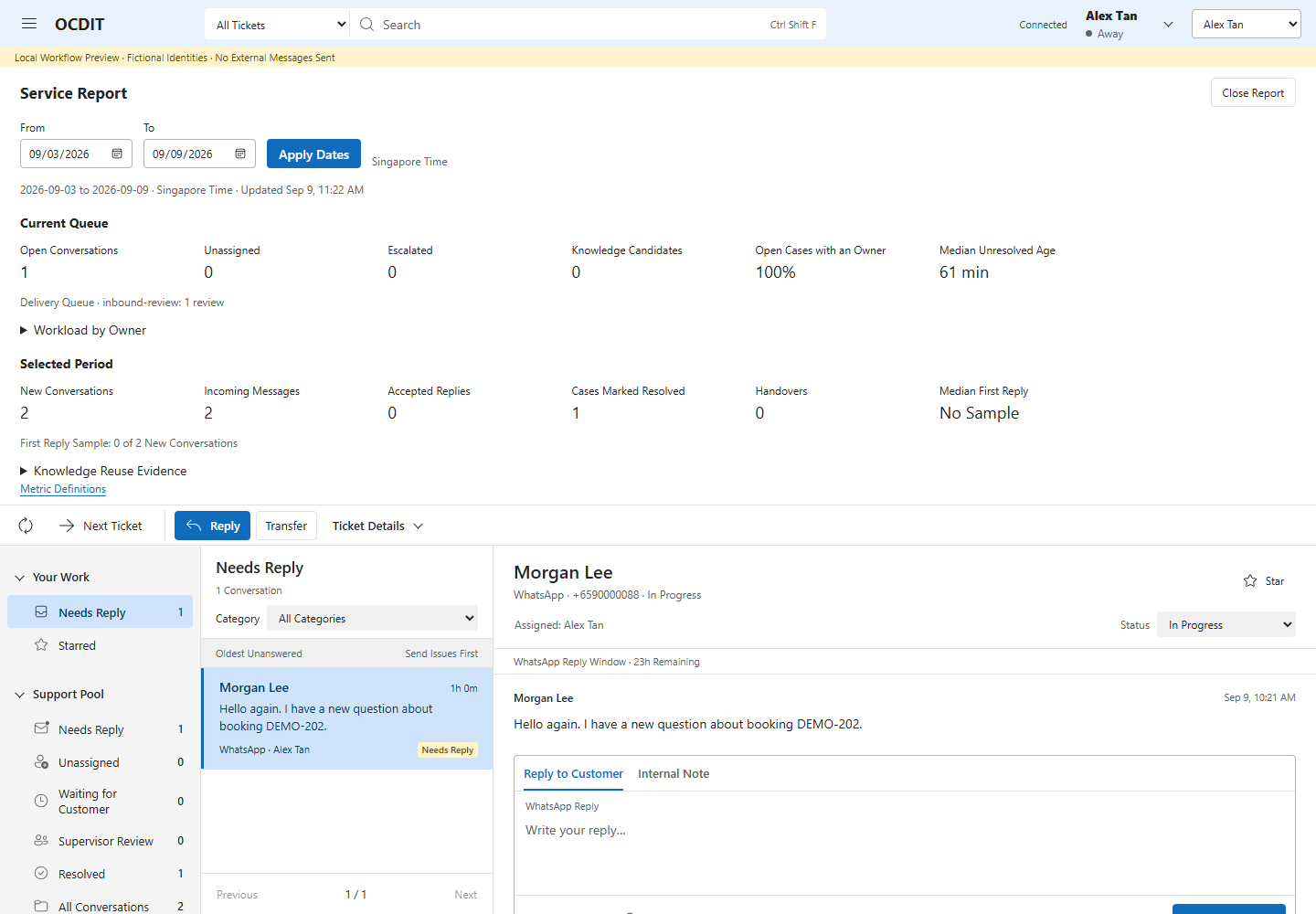
This is a local verification example, not the hosted account's current health. The report is a snapshot; close and reopen it to refresh.
Incident: A Reply Is Uncertain
- Tell the case owner not to resend. Record the time, channel, case and visible status privately.
- Check the stored message and job state through an authorized read-only database session. Review provider response metadata and redacted service logs. Never print tokens, request headers or full customer bodies into a shared transcript.
- Ask the tester/customer through an approved route whether the original message arrived; inspect provider evidence where available. LINE and WeChat acceptance alone cannot prove phone delivery.
- Record the investigation and decision as an internal case note. If delivery remains unknown, leave it uncertain. Do not change a job to queued or replay a webhook to force another attempt.
- Only after confirming a new send is appropriate should the current owner explicitly compose and send it, within channel rules. Retain the original evidence.
There is no administrative reconciliation screen yet. An application restart deliberately preserves ambiguous sends as Uncertain. A missing Teams alert can be investigated separately from customer delivery; use Inbox or the bot's inbox command to recover the stored case.
Consistent Backup and Restore Check
- Choose a new private backup filename on approved encrypted storage. Restrict the directory to administrators.
- Run the supplied utility against the live database. It uses SQLite's backup API, so WAL writes do not require an unsafe filesystem copy.
sudo python3 /opt/ocdit/app/scripts/backup.py /opt/ocdit/data/live.sqlite /PRIVATE_BACKUP_DIR/ocdit-YYYYMMDD-HHMM.sqlite
- Require successful integrity, foreign-key and application-table row-count checks on its separately restored copy. Existing output filenames are refused.
- Securely retain the matching application version, private configuration and dedicated reverse-proxy configuration as separate restricted recovery assets.
- Record timestamp, application commit, result, backup location and custodian privately. Store off-host only in a location approved for the data; apply the agreed retention policy.
This utility has passed with the pilot database, including knowledge history. It is not a scheduled backup, off-host replication or proof of full-service recovery. Those remain rollout work. Never copy only live.sqlite while active WAL writes continue, put SQLite on a shared network filesystem, or run two sending workers on the same restored data.
Update and Roll Back
- Build and test the proposed version locally with
npm ciandnpm test. Stage a release separately; record its commit and dependencies. - Back up the current app, configuration and consistent database to a new named rollback directory. Check only the isolated service and dedicated nginx site.
- Notify the tester of the brief interruption. Stop only OCDIT, allowing its worker to drain. Do not terminate unrelated applications.
- Replace only the intended app/configuration files. Preserve ownership and restricted permissions. Start only OCDIT and check health, unauthenticated API rejection, sign-in and the changed workflow.
- If a proxy change is needed, run
nginx -tbefore a graceful reload. Verify unrelated site hashes remain unchanged. - If the update fails, restore the prior compatible app/configuration first. Preserve the current database when compatible.
A historical database restore is a separate recovery decision: it can lose new inbound messages, approvals and audit history or reintroduce old delivery work. Stop both old and replacement workers, reconcile the recovery interval and uncertain sends, and explicitly authorize the data-loss/replay consequences before switching traffic. A copied SQLite file alone is not a failover plan.
Static guide updates do not require restarting the messaging service. Back up their directory and the dedicated site configuration, publish reviewed files, test routes and keep a rollback copy.
Credentials and Access
- Keep an expiry register for each credential, named owner and renewal route. Store values in the approved secret store or root-restricted environment file; never in this guide.
- Before rotation, prepare the replacement only in the isolated app/account, with minimal scopes and approved expiry. Keep the old credential during the verification overlap only if the provider allows it.
- Update the private runtime configuration, restart only OCDIT, then verify the affected real sign-in or channel round trip.
- Revoke the old credential after verification. Record the result without its value. Do not assume every provider supports overlap or rollback to a revoked token.
- Treat staff access changes as a reviewed action: check the actual Entra Object ID, the app allowlist, reviewer list and existing owned cases.
Before removing an employee, have them hand over owned cases and settle knowledge authorship/review responsibilities. If they are absent, a configured supervisor can recover active cases through Supervisor Recovery with a reason; see Escalation and Recovery. An escalated case stays with a supervisor until its decision is recorded. Resolved cases must first be reopened by their owner; coordinate engineering recovery if that owner is unavailable. There is still no knowledge authorship-transfer screen. Do not edit ownership rows casually or reuse an employee's identity. Removing an actor is not deletion of their historical records.
Keep Guides Current
- Edit the canonical Markdown files in
docs/; see Documentation Map for source/output mapping. - Capture changed screens with fictional local data. Keep the preview label visible. Review every image for account details before publication.
- Build with
python -m pip install -r scripts/docs-requirements.txt, thenpython scripts/build_guides.py. - Open the generated staff and admin pages at desktop and narrow widths. Check contents links, screenshots, print layout and cross-links.
- Run
python scripts/check_guides.py,npm testif app files changed, and the package privacy check. Publish only the generated guide directory; never expose the repo root, runtime DB, private notes or source ZIP through the web server.
The public guides explain setup but grant no access. The guide source contains no public credential form, customer data, portal screenshot containing secrets or analytics code. The hosted guide policy permits only same-origin scripts.
Before Real Customer Traffic
Agree operational owners, incident contacts, service hours, retention/deletion, backup location, recovery objectives, approved provider accounts and employee access. Rehearse multi-user access, offboarding, full recovery and the Azure move. WeChat encrypted callbacks remain a production blocker. See Hardening and Rollout Gates.
Supervisor Recovery Is Not Delivery Recovery
Supervisor Recovery changes the accountable owner of an active case. It preserves all history and does not cancel, retry or reconcile customer sends. Wait for queued/sending work to settle. For an uncertain provider result, follow the existing incident procedure before any new reply. Configure supervisors explicitly in SUPERVISORS; test with ordinary staff as well as supervisors before adding real users.
Correct Customer Profile Records
- Open the linked ticket as an assigned staff member, then select Customer Profile in the command bar (Ticket Actions on a phone).
- Use Edit Fact to correct a value; it returns to Unverified. Record supporting evidence.
- Use Mark Unverified to withdraw verification, or Unlink Case to correct a mistaken identity link. Give a reason.
- Check Profile History for earlier values and reasons. Unlinking does not erase the profile or history.
See Customer Profiles for access and retention limits.